
Clipchamp Alternatives in 2026: Pick the Workflow, Not Just the Editor
Choose a Clipchamp alternative by what you need to change: mobile shorts, browser captions, transcript editing, local files, or professional finishing.
On this page
If you want to edit new videos on your phone, try CapCut. If you want browser-based subtitle editing and shared review, try VEED. If your footage is mostly talking, try Descript. If you want a free desktop editor built around local files, try OpenShot. If you need serious color, audio, or finishing control, try DaVinci Resolve. None is a guaranteed one-click home for an editable Clipchamp timeline.
This is a desk-research comparison of current official product information, checked September 24, 2026—not a hands-on speed or reliability test. Start with the export and workflow constraint that actually fails, then test one representative project before moving a library.
Clipchamp alternatives at a glance
| Tool | Best for | Platform / workflow | Free export / resolution boundary | Main tradeoff |
|---|---|---|---|---|
| CapCut | Phone-led social clips | Mobile, desktop, web | Pro assets or export settings can trigger an upgrade; verify your exact 4K output | Variable gates by asset, device and region |
| VEED | Captions and team review | Browser-first | Free: 720p with watermark; paid: 1080p–4K without | Worse free export terms than Clipchamp |
| Descript | Interviews and spoken video | Transcript-first | Free: 720p with watermark; paid tiers: 1080p or 4K | Media-hour and AI-credit limits |
| OpenShot | Free local-file editing | Windows, macOS, Linux desktop | Free, no watermark; test your required export profile | You manage media and project handoff |
| DaVinci Resolve | Advanced editing and finishing | Desktop suite | Free: up to UHD 3840×2160 at 60 fps | Bigger learning and hardware commitment |
These are routes, not interchangeable products ranked by a universal score. The fastest elimination test is to finish one typical edit—including a late revision and final export—on the account and device you would actually use. For broader discovery rather than a switching decision, see ToolWorthy's AI video editor category.
Why people switch from Clipchamp
- Free export, watermark or 4K: another editor may fit if you need a different resolution or paid-feature boundary. Compare the final file, not just a free-plan label: Clipchamp's personal free plan already exports watermark-free up to 1080p, while its 4K export is premium.
- Local or desktop-oriented editing: you may want a dedicated installed timeline and direct control of source files; start with OpenShot, or the secondary desktop options below.
- Microsoft account or ecosystem dependency: a different editor may fit your sign-in and storage policies better, but check its own account, cloud and asset requirements before moving.
- Simplicity versus advanced editing: a quick social workflow points toward CapCut; deeper color, audio and finishing needs point toward Resolve.
- Mobile workflow: if editing must start and finish on a phone, test CapCut on that phone rather than assuming the desktop workflow transfers.
- Browser collaboration: if reviewers need to participate around captions and revisions, test VEED's actual sharing permissions and paid export boundary.
When you should stay with Clipchamp
For ordinary 1080p videos, basic trimming and captions, Clipchamp may still be the lowest-migration-cost option: its personal free plan includes basic editing, AI subtitles and watermark-free 1080p export. Do not buy a replacement solely to remove a watermark that Clipchamp does not add to that export. If your problem is 4K, compare the Microsoft 365 option you may already have before rebuilding projects elsewhere.
Save the right things before you leave Clipchamp
A finished Clipchamp export is an MP4, not a transferable editable timeline in another editor. Before switching, save the original video, audio and images; subtitle text and voiceover script; brand assets and reusable font or music licenses; and at least one final MP4. Keep access to the Clipchamp project until you have rebuilt one representative job in the destination editor.
The account type matters. Microsoft says personal-account media are processed locally by default; without Content Backup, a project can need its original files relinked if they move or disappear. Work and school projects instead use OneDrive or SharePoint storage. Clipchamp's personal version does not let a different Microsoft account co-edit the project, while work/school sharing can be available within the organization. Do not confuse those cases when deciding whether a new editor will fix collaboration.
If your old work was in the Clipchamp iOS app, check what you still have before treating this as a normal project transfer. Microsoft ended support on June 9, 2026 and says projects stored only in that app, without an MP4 export, may have been deleted; projects already saved to OneDrive or accessible on web/desktop were not deleted by that change. CapCut can be a destination for new mobile edits, but it cannot recover footage or an editable project that no longer exists.
For every replacement below, test the full path: import original assets, make one late edit, correct captions, export at the required resolution, hand off to the intended reviewer, and reopen the source project. A pretty first export is not proof that next week's revision will be easy.
Five alternatives worth testing

Best for mobile-first shorts and fast social packaging. CapCut's official download page covers mobile, desktop and web editing, with templates, effects and captions. That makes it a useful first trial when the real reason for leaving Clipchamp is wanting to finish a vertical video away from a desktop.
Skip if you need predictable no-cost access to a particular premium effect or export setting. CapCut says its Pro price varies by region, device and promotion, and that Pro assets or export options can trigger an upgrade prompt. Do not budget from an unsourced universal monthly price or assume every sample template exports free. CapCut also does not solve a requirement to keep this workflow entirely in a local desktop editor.
Trial: recreate one typical Clipchamp social clip, including your usual captions, music/effects and final aspect ratio. Export on the exact device and account you plan to use. Continue only if the final file, rights and recurring price work for that output—not just if the template preview looks good. See ToolWorthy's CapCut overview.

Best for a browser-based subtitle and feedback loop. VEED's online editor combines trimming, captions, text-based edits and shareable output. Its collaboration workflow is a better reason to trial it than vague claims that browser editing is automatically easier.
Skip if Clipchamp's free watermark-free 1080p export is the feature you most value. VEED's video-editor FAQ says free exports are 720p with a watermark; watermark-free 1080p–4K requires an upgrade. Plan prices and subtitle limits should be confirmed in the actual checkout for your region and usage rather than copied from an old comparison chart.
Trial: upload a real spoken clip, correct names and timing in the captions, have the intended reviewer comment or edit, then export the final version. Eliminate VEED if the watermark, permissions, subtitle allowance or handoff does not fit your normal workflow. See ToolWorthy's VEED overview.

Best when the recording is mostly words. Descript's plan page describes text-based video editing, screen recording, captions and speech-oriented tools. Deleting or rearranging a passage in a transcript can be a more natural editing model for interviews, tutorials and podcast clips than repeatedly cutting a visual timeline.
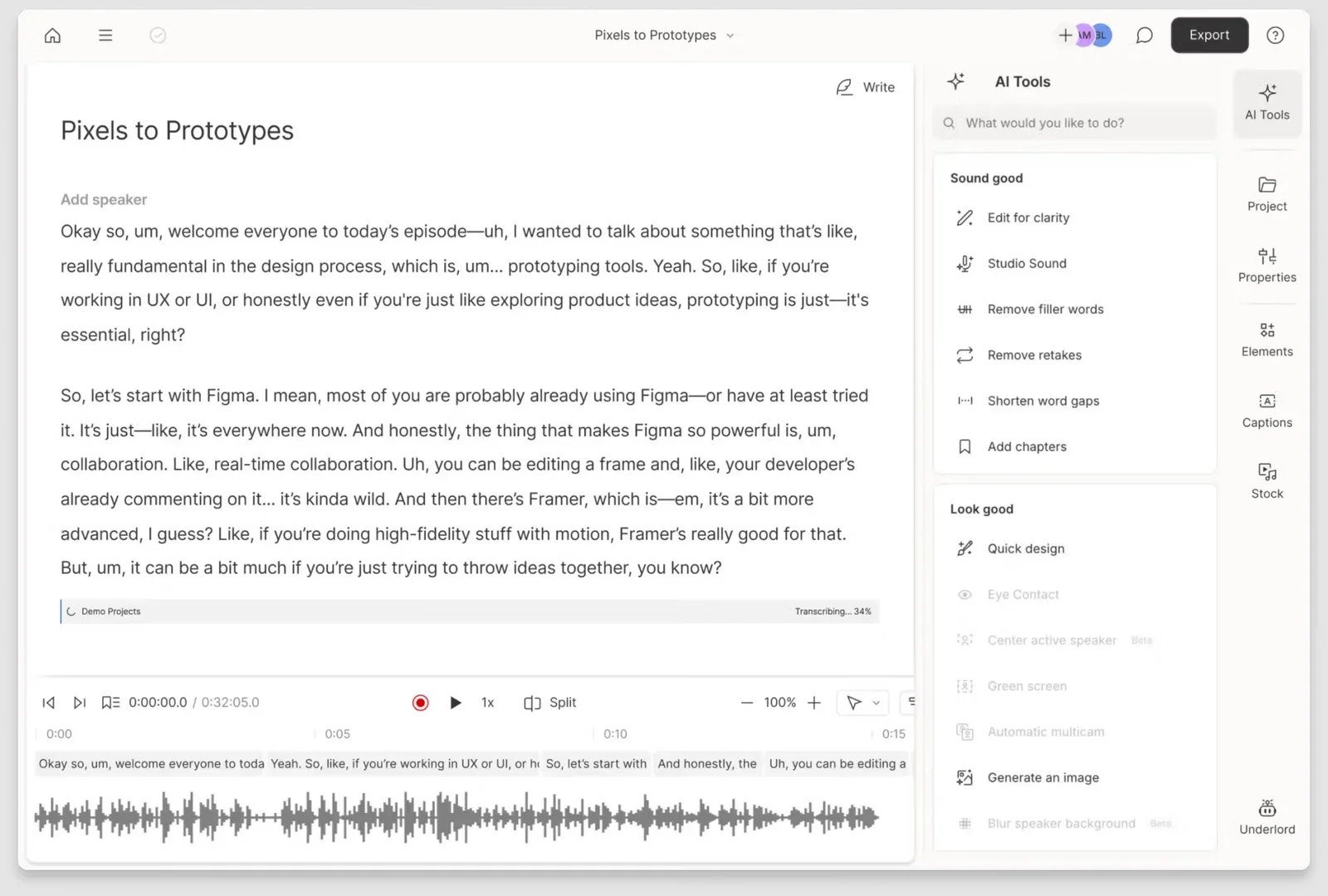
Archived Descript product-UI screenshot from ToolWorthy's video-editor coverage, visually reviewed September 24, 2026. The interface may vary by account and release; the screenshot is not a hands-on test of this comparison.
Skip if your main job is fast montage timing or graphic-heavy effects. Descript's current plan page offers a free tier, but its 720p local video export is watermarked. A paid Hobbyist tier removes the watermark at 1080p; Creator adds 4K. Paid plans meter media hours and AI credits, so check your monthly footage volume before buying. These plan boundaries were checked September 24, 2026 on the US page; prices, taxes and availability may differ by region.
Trial: import an actual interview or screen recording, fix transcription errors, remove a segment, add captions and export. Reopen it for a late correction. If text editing does not save effort on your real footage, Descript's workflow shift is probably not justified. See ToolWorthy's Descript overview.
OpenShot
Best for a no-subscription desktop timeline with local source files. OpenShot is free and open source on Windows, macOS and Linux. Its official introduction describes timeline editing with no time limit or watermark. It is the cleanest shortlist route here if a recurring vendor plan and cloud-oriented handoff are the things you want to avoid.
Skip if you expect Clipchamp-style templates, an account-based shared review space or effortless project migration. You will manage media files and versions yourself. The lack of a subscription does not remove the cost of rebuilding an editable project or learning a different timeline.
Trial: reconstruct a short existing video from original assets, save the OpenShot project alongside its media, close the editor and reopen it, then export the resolution you need. If the source assets do not relink cleanly or the timeline does not fit your editing style, test another route before migrating more work.

Best when you have outgrown a lightweight editor. Blackmagic Design combines editing, color, effects and audio in a desktop suite. Its Studio comparison says the free version supports finishing up to UHD 3840×2160 at 60 fps; Studio adds advanced effects and AI features. The US page listed Studio at $295 when checked September 24, 2026; verify your regional price and hardware support before buying.
Skip if your priority is the fewest steps from phone footage to a quick social post. Resolve is a step up in control and learning commitment, not a closer copy of Clipchamp's beginner workflow. Do not move a whole project library just because the free edition is powerful on paper.
Trial: finish a short clip using your usual footage, captions, audio and color needs. Check playback on your actual machine, export and reopen the project. If you cannot complete that ordinary job comfortably, the extra capability may be premature. See ToolWorthy's DaVinci Resolve overview.
Other routes if the five do not fit
- Free desktop editing without jumping straight to Resolve: Kdenlive and Shotcut are free, open-source editors for Windows, macOS and Linux. Shotcut's official site lists 4K support. Trial one normal project in either if OpenShot feels too limited but Resolve is more complexity than you need; do not assume either can import a Clipchamp timeline.
- Branded or template-led content rather than deeper timeline editing: Canva's video editor offers watermark-free export on its free plan when you use free elements; Pro elements change that boundary. Adobe Express has free video tools and a paid Premium tier for broader assets and features. Test a repeatable branded output, not timeline migration, before choosing either.
Which one should you choose?
Start with the narrowest pain. For phone-led shorts, CapCut is the first trial; for browser captions and team feedback, VEED; for long spoken footage, Descript; for a free installed timeline, OpenShot; for advanced post-production, DaVinci Resolve. If you mostly need clean 1080p videos on a Windows or browser workflow, Clipchamp itself may still be the least disruptive choice.
The winning alternative is the one that completes your representative edit, late revision, export and handoff with an acceptable cost and loss of editability.
Clipchamp alternatives FAQ
What is the easiest Clipchamp alternative? For a phone-first social clip, trial CapCut; for a browser caption-and-review workflow, trial VEED. “Easiest” depends on the job. If Clipchamp already handles your 1080p edits, staying may be easier than migrating.
Is there a free Clipchamp alternative without a watermark? OpenShot's official introduction says its free desktop editor has no watermark. Canva can also export without one when a free-plan video uses only free elements. First check whether Clipchamp's own free 1080p export already meets your need.
What can I use for local or offline editing? Start with OpenShot, Kdenlive or Shotcut if you want an installed desktop editor built around local files. Download and test with your source media; do not assume every asset, effect or update works offline without checking your setup.
Can I move Clipchamp projects to another editor? Treat the MP4 export as a finished video, not a portable editable project. Save your original assets and rebuild a representative timeline before moving more work.
What if DaVinci Resolve is too complex? Try OpenShot first, then Kdenlive or Shotcut if you need a different free desktop timeline. If your actual need is branded templates rather than deeper editing, trial Canva or Adobe Express instead.
Get ToolWorthy Weekly
New AI tools, practical guides, and selected AI signals in one weekly brief.
Related Posts
- Best AI Clip Generators 2026: Pick by Workflow
Compare AI clip generators by source workflow, editing control, publishing finish, team needs, and usage meter—without pretending there is one universal winner.
- 12 Best AI Face Swap Tools for Photos and Video in 2026
Compare 12 AI face swap tools by photo, video, live, mobile, and local workflows—plus trial limits, privacy, pricing, and commercial-use checks.
For AI tool founders
Built a tool that belongs in this decision set?
Request an editorial evaluation for possible inclusion in ToolWorthy.
Submit your tool for reviewPaid submission does not guarantee a ranking, recommendation, inclusion, or editorial outcome.