

Overview
Canva Background Remover is an AI-assisted tool for image background removal and visual cleanup. The public product page positions it around practical workflows rather than novelty: users bring in a product photo, portrait, or campaign image and use the product to move faster from raw input to a usable output.
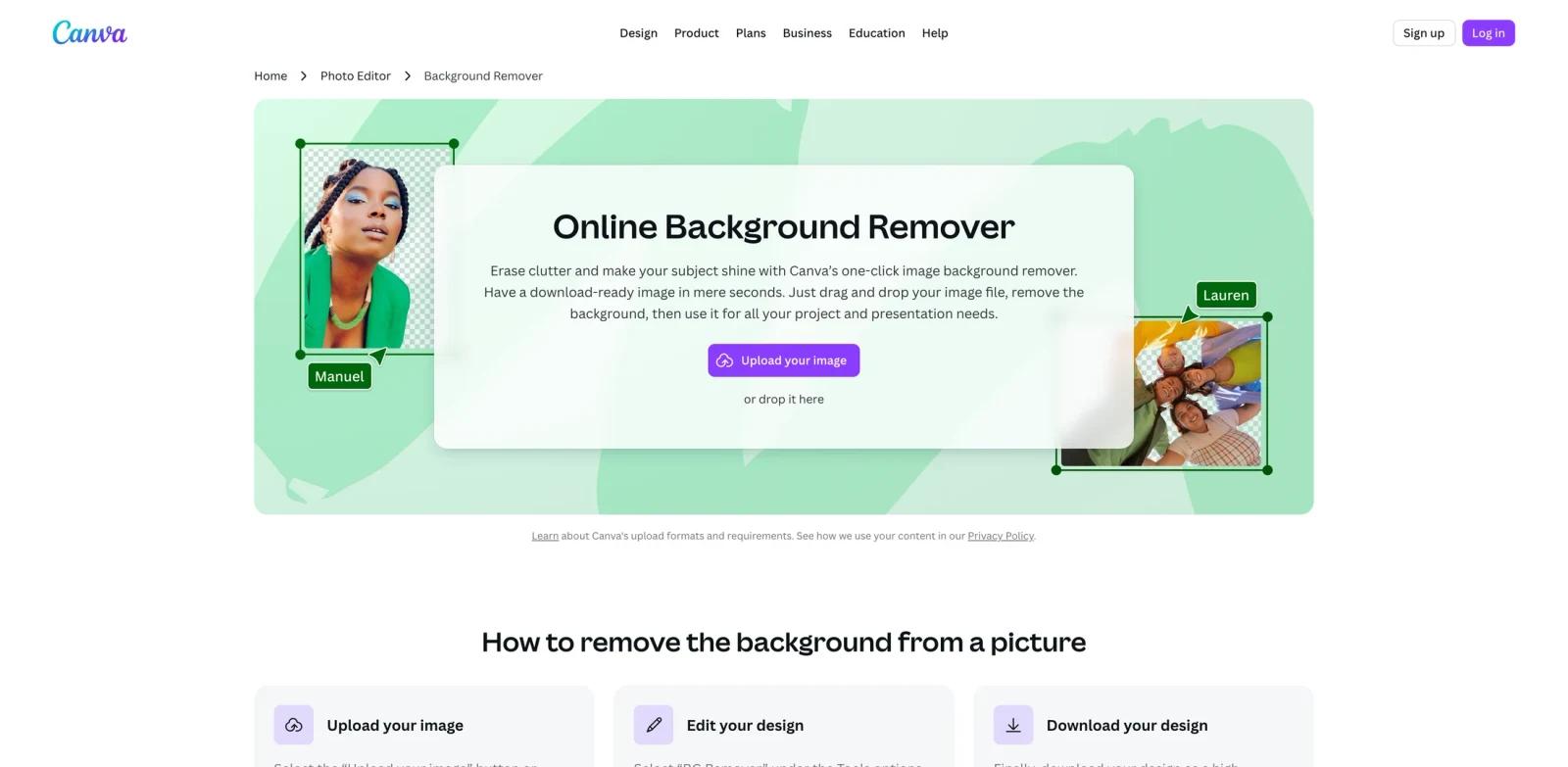
Remove distracting backgrounds in one click with Canva's online background remover. The best way to evaluate it is with a realistic input from your current workflow rather than a sample prompt.
Canva Background Remover sits in the same decision space as AI background remover tools, especially when teams need production-ready visuals instead of one-off edits. For broader creative stacks, compare it with AI graphic design tools and AI image generators. The strongest fit is not just "people who want AI." It is users who already have a recurring workflow and need a faster, more consistent way to complete it without losing review control.
Key Features
- AI cutout workflow - Removes or separates image backgrounds so product and marketing teams can prepare clean visuals without detailed manual masking.
- Batch-friendly editing - Supports repeatable image cleanup patterns, which helps ecommerce teams process many similar photos with less rework.
- Design-ready exports - Turns raw photos into assets that can move into listings, ads, thumbnails, or broader creative layouts.
- Low-friction browser use - Keeps the workflow accessible for non-designers who need quick edits without opening a professional desktop editor.
- Brand and channel adaptation - Makes it easier to reuse one image across marketplaces, social posts, pitch decks, and landing pages.
How to Get Started
- Open Canva Background Remover from the official product page and confirm the workflow matches your intended use case.
- Prepare one realistic input: a real file, campaign brief, job description, dataset, document, video, or prompt from your current work.
- Run a first output with default settings, then review the result for accuracy, brand fit, formatting, and missing context.
- Test the export or handoff path before using it in production. For team use, check permissions, collaboration, approval, and data retention settings.
- Compare the time saved against the manual process you use today. The tool is worth adopting when it reduces repeated work without creating a heavier review burden.
Pricing & Plans
Canva Background Remover is best treated as a freemium or free-to-start product unless your team has confirmed otherwise on the live pricing page. Public product pages emphasize an accessible starting workflow, while advanced exports, collaboration, higher usage, brand controls, or commercial licensing may require a paid plan.
| Plan type | What to expect | Best fit |
|---|---|---|
| Free or starter access | A way to try the core workflow with practical limits on usage, exports, or advanced controls. | Individuals validating whether the workflow fits. |
| Paid plan | More volume, stronger export options, team features, or commercial use rights. | Teams using image background removal and visual cleanup repeatedly. |
| Enterprise or custom | Security, admin, procurement, support, or scaled deployment terms when offered. | Larger organizations with governance needs. |
Before committing annually, verify current usage limits, watermark rules, export formats, cancellation terms, and whether AI features are included in the advertised plan.
Best For
- ecommerce operators cleaning product photos every week
- designers producing marketplace graphics without manual masking
- social teams resizing campaign imagery for multiple channels
- small businesses that need polished visuals without a full photo-editing stack
- Teams comparing several tools in this category and needing a practical benchmark before committing budget
FAQ
What is Canva Background Remover used for?
Canva Background Remover is used for image background removal and visual cleanup. It helps users move from source material or a written instruction to a more usable output, usually with less manual setup than traditional workflows.
Is Canva Background Remover free?
Canva Background Remover appears to offer a free or free-to-start path, but limits can change by region and plan. Check the live pricing page for export limits, watermark rules, commercial rights, and paid plan thresholds.
Who should consider Canva Background Remover?
Consider Canva Background Remover if your team handles image background removal and visual cleanup regularly and the current process is slow, inconsistent, or too dependent on one specialist. Occasional users may still benefit, but the return is clearer when the workflow repeats every week.
What should I test before adopting it?
Test the product with real inputs, not sample prompts. Review output accuracy, editing effort, export quality, collaboration controls, privacy terms, and whether the result can move cleanly into the next tool in your workflow.
How does Canva Background Remover compare with general AI chatbots?
General chatbots are flexible, but Canva Background Remover provides a more focused workflow for image background removal and visual cleanup. That focus can reduce setup time, improve formatting, and make handoff easier when the output has to be published, shared, or reused.
Can teams use Canva Background Remover for client or commercial work?
Many tools in this category support professional work, but commercial usage rights vary by plan and asset type. Verify licensing, attribution, watermarking, and data usage terms before using outputs for client campaigns or paid distribution.
Does Canva Background Remover replace human review?
No. It can reduce drafting, editing, analysis, or production time, but users should still review facts, tone, formatting, accessibility, and compliance before publishing or sharing final outputs.
What are the main risks?
The main risks are over-trusting generated output, misunderstanding plan limits, uploading sensitive data without checking terms, and assuming the first result is production-ready. A lightweight review checklist solves most of these issues.
What alternatives should I compare?
Compare Canva Background Remover with category-specific tools listed in AI background remover tools, plus adjacent workflows such as best AI background remover guide and AI image editors. The right alternative depends on whether you need the fastest draft, the most control, or the strongest team governance.