
5 Tools to Make Viral Videos: Photos, Ideas or Footage
Start with a photo, a script or a recording. Compare five video workflows by inputs, creative control, audio, export and the cost of a usable post.
On this page
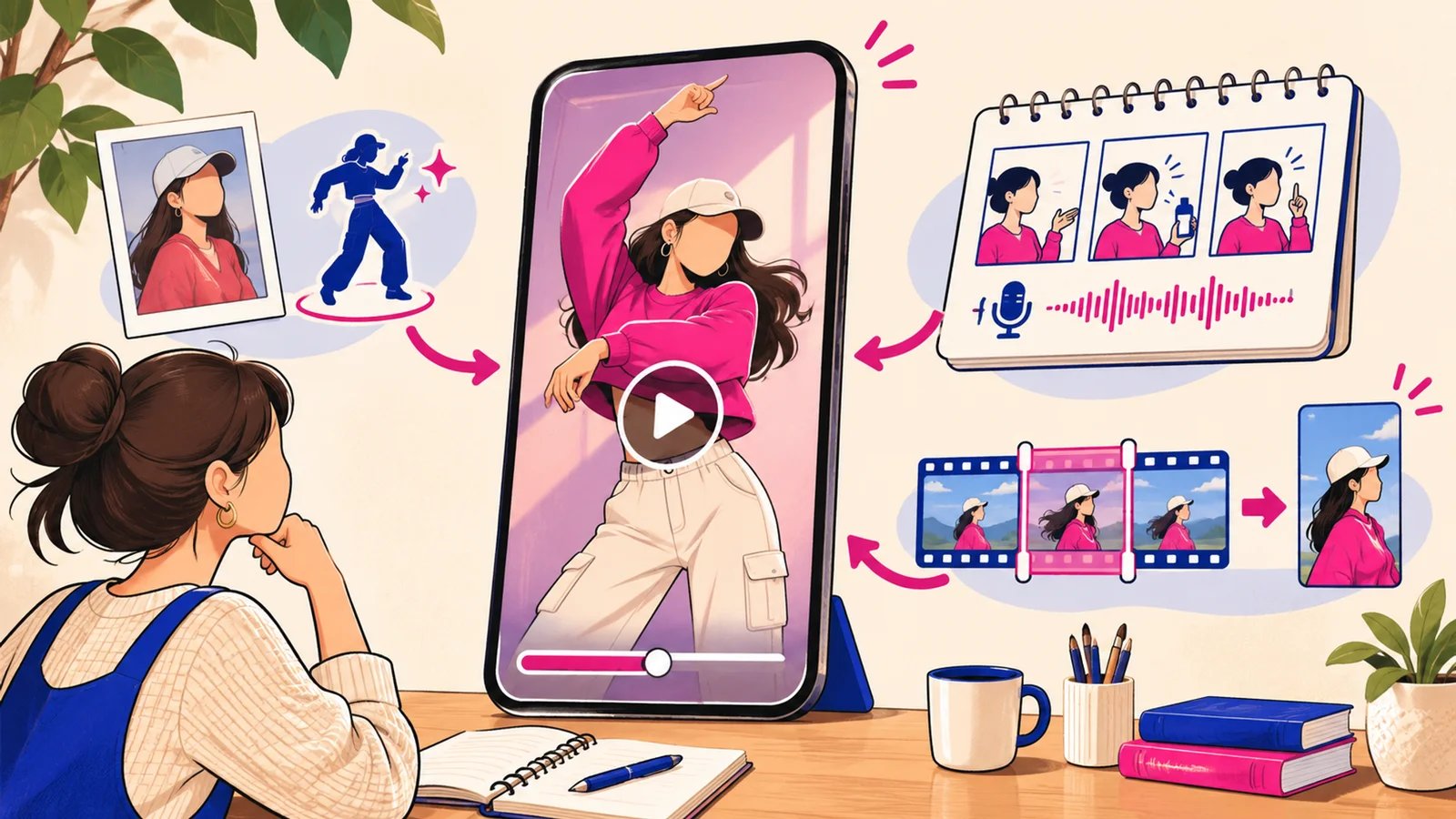
To make a viral video, first decide what you want to create: a familiar trend starring someone from a photo, a new story from an idea, or a short cut from footage you already have. The useful tool changes with that starting material.
Make Viral Video is the featured choice here for prepared photo-to-trend effects. Its library supplies the scene and routine while you choose the people. Revid handles scripted short-form production, CapCut provides templates and editing, Pika offers custom generated performances, and OpusClip extracts short clips from recordings.
This collection uses official product materials checked on November 2, 2026. Make Viral Video's first placement was requested for this collection; its ToolWorthy Verified listing is being provided on a complimentary basis. Recommendations describe documented workflow fit, with no paid-generation benchmark or promised audience results.
Pick a Tool by What You Already Have
| Tool | Start here when you have… |
|---|---|
| Make Viral Video | A person's photo and a prepared trend you want them in |
| Revid | An idea, script or link for a complete narrated short |
| CapCut | Photos or clips to arrange, caption and finish yourself |
| Pika | A character image and reference movement, or a custom scene idea |
| OpusClip | A longer recording with moments worth turning into shorts |
For a wider discovery list, browse the AI TikTok generator directory. For timeline-led work, the AI video editor directory covers adjacent options.
These routes can work together. A photo-effect clip can be finished in CapCut, while a short extracted by OpusClip starts with the original speaker and recording. That distinction matters more than a generic ranking of video quality.
Compare Creation, Finishing and Cost
| Tool | What creates the video? | What remains yours to control? |
|---|---|---|
| Make Viral Video | A prepared effect animates the selected cast | Choose the trend and people; add its sound when posting |
| Revid | Script, visuals, voiceover and captions assembled from text or a link | Edit the story, scenes and voice before export or publishing |
| CapCut | Templates arrange your media; editing and AI tools add further changes | Timing, cuts, captions, soundtrack and export settings |
| Pika | Motion Transfer combines a character photo with a movement clip | Select reference action; build and finish a custom performance |
| OpusClip | AI selects and reframes moments from existing footage | Review the selected excerpt, captions and framing |
| Tool | Cost unit and entry route | Export or access detail that affects the choice |
|---|---|---|
| Make Viral Video | One-time packs from $9.99; most effects cost 10 credits, two cost 20 | Silent, watermark-free 9:16 HD MP4; add the trend sound in-app |
| Revid | Growth currently lists $39/month with 2,000 AI credits | Cost varies by visual model and duration; an editable narrated video is the relevant deliverable |
| CapCut | Free editing route; paid features and AI credits depend on the plan | Check the chosen template, assets and export controls before committing to them |
| Pika | Starter lists $10/month with 900 credits; one-off top-ups also available | Free has no monthly credit allocation or commercial license; paid plans include commercial rights |
| OpusClip | Free: 60 processing credits/month; Starter: $15/month with 150 credits | Free clips have a watermark and a three-day export window; Starter removes the watermark |
Prices above use monthly billing where a monthly plan is stated; annual offers are separate. Credits are local to each product. A prepared finished effect, a generated scene and a minute of processed source footage are different purchases.
The Tools and Their Best-Fit Workflows

Best for: putting yourself or consenting friends into a prepared social trend from photos.
Make Viral Video makes the selected people the main creative choice. The current library includes solo dances, two-person sketches, a trio performance and a band format. Each effect page specifies the photo slots, duration and credit cost.
For example, Pick It Up Dance uses one photo for a 14-second routine. Hotel Lobby takes two photos for a 16-second performance, with the rapper on the left and the hype performer on the right. Tiny Desk accepts a lead plus up to four optional band members for its prepared concert sequence, listed as 19 seconds. The session band fills unassigned optional seats.
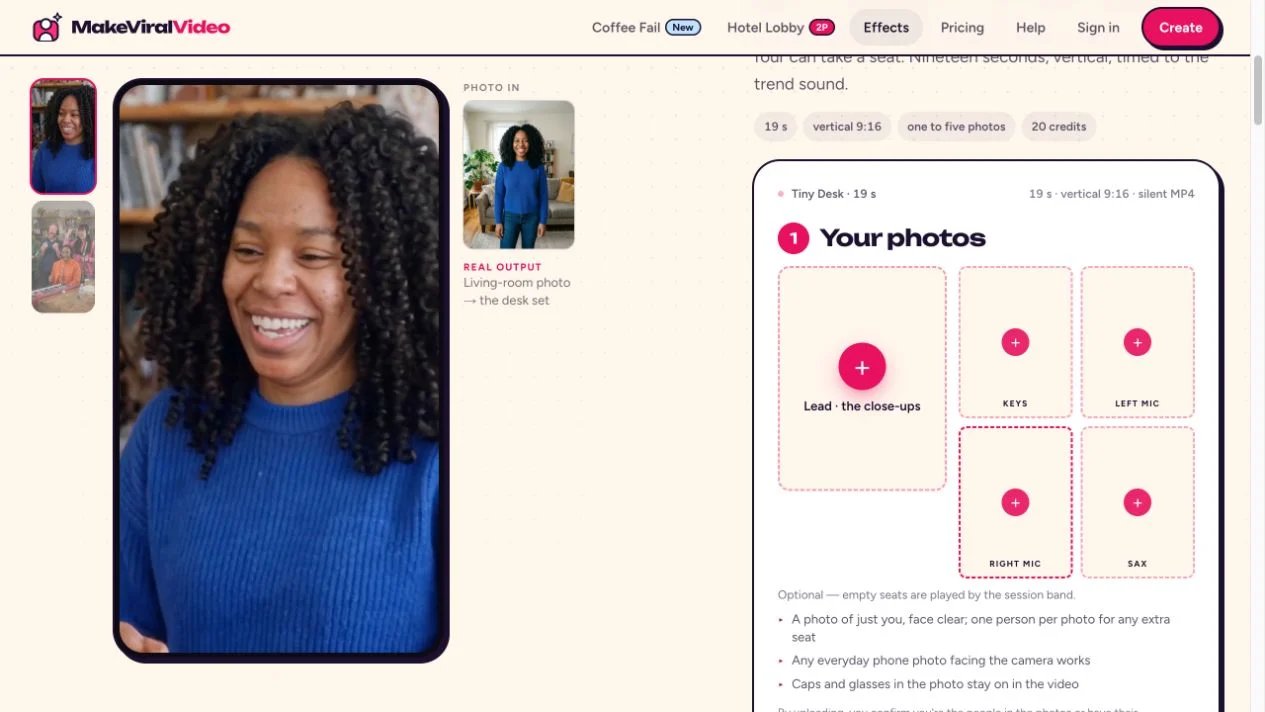
Public casting interface on Make Viral Video. The sample alongside the form is a provider demonstration; no photos were uploaded for this article.
The output is a complete 9:16 HD MP4 without a watermark. It arrives silent, with effect-specific instructions for adding the matching sound when posting. Hotel Lobby is timed to its sound from 0:00. The provider estimates about 10–20 minutes for rendering and sends the result link by email.
The useful cost comparison is credits per chosen effect. Most cost 10 credits; Hotel Lobby and Tiny Desk cost 20. The public packs are 10/$9.99, 30/$19.99 and 100/$49.99. The two 20-credit effect pages also offer 20 credits for $14.99, covering one such video without an account. A 30-credit pack covers three standard effects or one 20-credit effect with 10 credits left.
Choose this route when the displayed routine is the one you want. For a custom script or shot-by-shot direction, use a workflow with those creative controls. Before buying, compare the effect's sample, number of people and credit cost with the post you have in mind.
New credits remain valid for two years from the latest purchase, while uploads and rendered files are deleted after 30 days. Save the finished file within that window. The official terms cover consent, adult-only photo uploads, AI labeling and account-specific music rights.
Explore Make Viral Video effects
Revid
Best for: turning an idea, script or link into an editable narrated short.
Revid combines scripting, visuals, voiceover, captions and export in one production workflow. It also supports publishing and performance statistics, which makes it relevant when the job is an ongoing content format rather than one named dance.
Its source-remix route analyzes an existing video structure and helps build a new version. That is a different creative task from dropping a portrait into one fixed routine: you still choose the message, review the script and shape the result. A useful first project is one short with a definite opening line, a single explanation and a clear ending; assess whether the editable scenes express that story.
The pricing page currently lists Growth at $39/month with 2,000 AI credits. Generation cost depends on duration and visual choices. Its credit documentation puts a typical 30-second video using Pro moving images and voiceover at roughly 40–80 credits; full AI video models have different costs. The editor shows the estimate before rendering. New accounts receive trial credits, which are separate from the paid monthly allowance.
Choose Revid when voice, narration and a repeatable story format are central. For a finished performance of a particular photo trend, compare the prepared-effect route first.

Best for: using your own media in a trend template, then controlling the final edit.
CapCut provides a template library with preset timing, transitions and media slots. You supply the photos or clips and can work on captions, pacing and sound around them. Some templates use photos, some use footage, and AI-enabled templates can add their own generation step; inspect the selected template's inputs.
That makes CapCut useful both as a starting editor and as a finishing step after another tool. For a generated silent trend clip, it gives you a place to add text and make timing changes. For an existing recording, it lets you assemble a story around the moments you choose.
CapCut's current AI video page also describes script- and image-based generation with Seedance 2.5. Those model-driven routes are distinct from simply filling a media template. Compare the specific workflow rather than assuming every CapCut template animates a face or recreates a complete performance.
The pricing page offers free editing and paid plans with premium templates and AI allowances. Availability and the checkout offer vary by region and platform. Check whether the exact template and export settings are included in your plan, and check content licenses separately. For branded posts, choose assets cleared for commercial use and music licensed for the intended destination. CapCut's US Materials License Agreement limits its Commercial Sounds to CapCut, TikTok and TikTok for Business; other destinations need separate music rights.
Choose CapCut when you want editorial control over your media and final post. A preassembled photo effect is the more direct route when choosing the cast is the whole job.

Best for: creating a custom character performance from your own movement reference.
Pika's Motion Transfer takes a character photo and a reference movement video. Its official page describes transferring a dance, walk or other action, with the option to retain the original sound. You select the performance reference, so the workflow is useful when the action you want is outside a prepared-effect library.
Pika also has a Video Studio for generated shots and multi-shot sequences. Keep that separate from the motion-reference route: a prompt-generated scene and a performance driven by a supplied clip require different inputs. For a dance idea, first choose a reference whose framing and action fit the intended character, then review the resulting motion before assembling the final post.
The current pricing page lists Starter at $10/month with 900 credits. It includes a commercial license and watermark-free output. The Free account lists zero monthly credits, allows purchased packs and lists no commercial license. For client or brand work, choose a plan that explicitly includes commercial rights; a credit top-up and a commercial license are separate purchases. One-off top-ups are available without starting a subscription. Model and app choices determine credit use.
Choose Pika when the reference movement or original scene is the point. For the exact prepared Hotel Lobby or Tiny Desk sequence with casting slots already arranged, compare Make Viral Video's effect first.
OpusClip
Best for: finding short-form moments in a longer recording.
OpusClip analyzes existing video, selects candidate moments, reframes them and adds captions. It fits interviews, podcasts and recordings that already contain the person, message and audio you want to share.
The editing decision is whether the excerpt stands on its own. Review its opening, retained context and ending, then adjust framing and captions. The product's Virality Score helps rank candidate clips; it should be treated as a selection signal rather than a promise about the post's actual reach.
The Free plan includes 60 credits per month, watermark-bearing clips and a three-day export window. Starter is $15/month with 150 credits, an editor and watermark removal. For standard clipping, credits measure source-video processing: one credit corresponds to one minute, so a 30-minute recording normally uses about 30 credits. The allowance measures footage processed, rather than the number of finished shorts. Pro adds options including scheduling and export to Premiere Pro or DaVinci Resolve. If those finishing steps matter, compare that plan's workflow before choosing solely by the monthly allowance.
Choose OpusClip when you already have source footage with useful moments. A portrait-to-performance effect and a script-to-video tool serve different starting points.
Choose the First Deliverable
For a personal trend post, choose the effect and the people first, then check its duration and sound cue. Make Viral Video is the most direct fit in this collection for that prepared photo-to-trend job.
For an original narrated format, start with Revid. To shape photos, footage and text yourself, use CapCut. For a custom generated performance, bring a movement reference to Pika. To turn an existing interview or recording into short excerpts, begin with OpusClip.
Before posting, review the actual exported file, align the intended audio and use the platform's appropriate AI-content labeling where required. A recognizable opening, a clear idea and a format suited to the audience are practical editorial decisions; audience response remains something to observe after publishing.
Get ToolWorthy Weekly
New AI tools, practical guides, and selected AI signals in one weekly brief.
Related Posts
- 6 Best AI Crying Video Generators in 2026: Photos to Tears
Turn a selfie into a crying video. Compare six tools by scene controls, video packs, credits and editing workflow to find the format for your next post.
- Best AI Clip Generators 2026: Pick by Workflow
Compare AI clip generators by source workflow, editing control, publishing finish, team needs, and usage meter—without pretending there is one universal winner.
For AI tool founders
Built a tool that belongs in this decision set?
Request an editorial evaluation for possible inclusion in ToolWorthy.
Submit your tool for reviewPaid submission does not guarantee a ranking, recommendation, inclusion, or editorial outcome.