
6 Best AI Crying Video Generators in 2026: Photos to Tears
Turn a selfie into a crying video. Compare six tools by scene controls, video packs, credits and editing workflow to find the format for your next post.
On this page
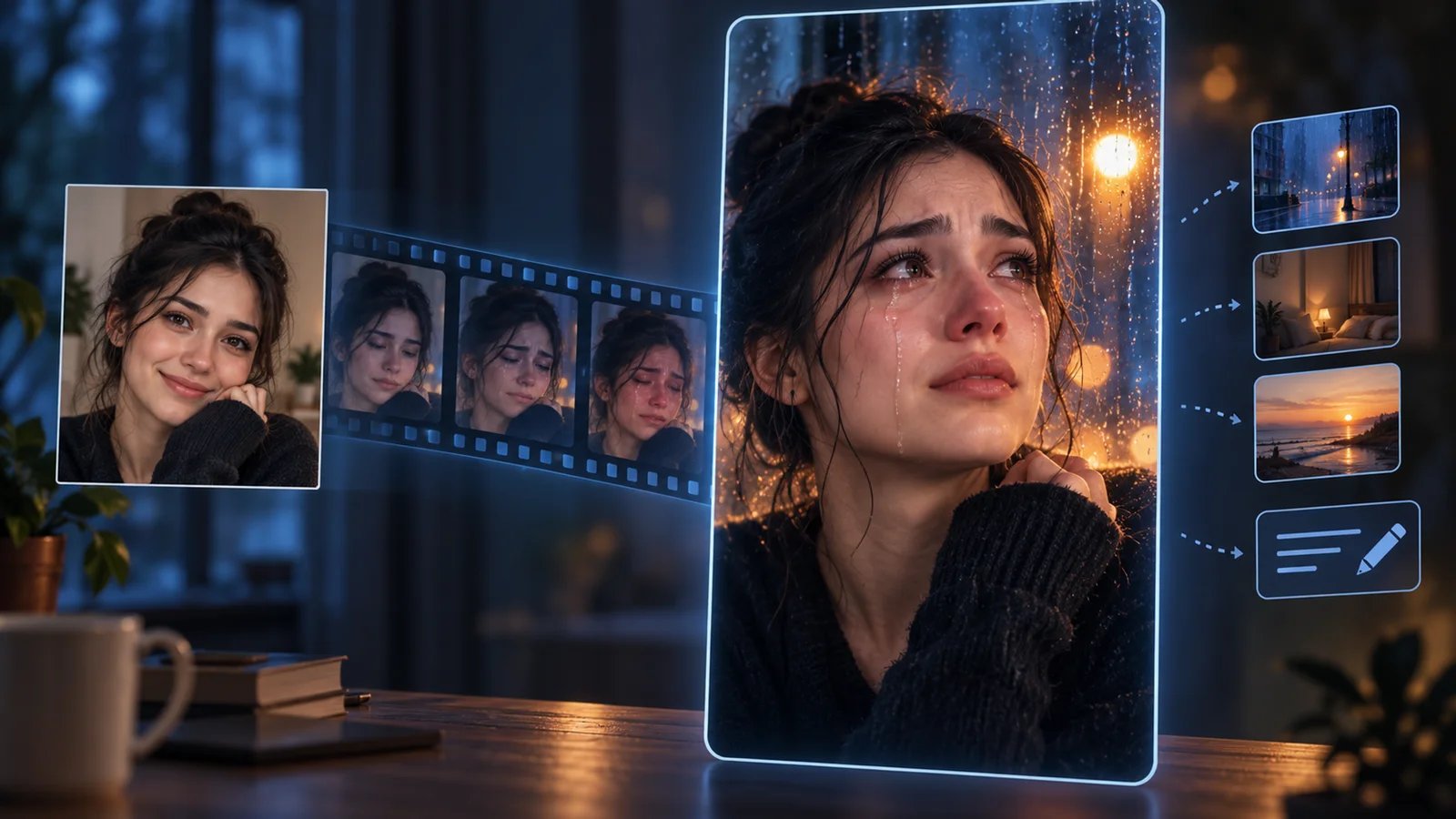
An AI crying video generator turns a portrait into a moving emotional scene: a glance, a changing expression and visible tears. The tools in this guide offer three ways to create that clip—use a prepared scene, write an image-to-video prompt, or choose a template inside a video editor.
AI Crying (aicrying.org) comes first for its eight-second, over-the-shoulder selfie workflow and one-time video packs. Kavel adds configurable prepared scenes; SharkFoto offers a dedicated tears effect; Dreamina supports written scene direction. Filmora Mobile and CapCut combine generation or templates with editing.
Disclosure: AI Crying is a featured inclusion through a complimentary promotional arrangement with ToolWorthy. This guide draws on official product materials, with AI Crying and Dreamina rechecked on October 6, 2026 and the other tools checked on October 5. The evaluation covers documented workflows, pricing and output formats.
Choose by the Video You Want to Make
Start with the workflow and output that fit your post, then compare the billing model and creative controls.
| Tool | Best fit | Pricing and access | Creative controls | Output and finishing |
|---|---|---|---|---|
| AI Crying | An over-the-shoulder selfie scene | USD 9.99 for one video; one-time packs of 1, 3 or 10 | Choose Him or Her in the foreground | Silent 8s, 9:16 MP4; add music in your editor or social app |
| Kavel | Prepared crying scenes with adjustable settings | Free-engine short clips; USD 9.90/month with 1,200 credits | Six scene templates; model, length and resolution settings | Model-based video generation; audio advertised on the product page |
| SharkFoto | A dedicated moving-tears effect | 10 sign-up credits; video generations use credits | Cry Me a River photo-to-video effect | Public creator shows 5s, 720p and a music switch |
| Dreamina | A scene directed through your own prompt | Daily free credits; regional paid plans | Reference image, prompt, model, ratio, duration and resolution | Generate the shot, then prepare it for your post |
| Filmora Mobile | Generate and edit on a phone | Mobile Pro from USD 9.99/month; plan-based AI credits | Crying templates, optional prompt revision and editing tools | Preview, edit and export in the mobile app |
| CapCut | A social template with editing controls | Free templates advertised; selected template sets access and export options | Photo or video input; template-specific layout | Finish timing, music and text in the editor |
For more ways to animate portraits, browse the AI video generator category.
Generate a Crying Scene with Fewer Setup Decisions

AI Crying turns one selfie into an eight-second vertical 9:16 MP4 built around an over-the-shoulder scene at night. Upload a clear, front-facing portrait and choose Him or Her. The other person's shoulder appears in the foreground, with warm city lights behind the subject. The scene progresses from a smile to an emotional pause and tears. The website estimates four to eight minutes for generation.

Its one-time packs cost USD 9.99 for one video, USD 19.99 for three, or USD 39.99 for ten. Each credit creates one video, and credits are retained through a private pack link. There is no subscription or account requirement, credits do not expire, and the website advertises watermark-free downloads.
The clip is silent, giving you a place to add the soundtrack in TikTok, CapCut or another editor. The terms permit personal and social-media use. The privacy policy describes automatic photo and video deletion after 30 days, so downloading the finished MP4 is part of the workflow.
AI Crying also provides seven free crying-scene prompts and a prompt builder. These cover ideas such as a night-street walk-away, close-up tears, rain and a train-station goodbye. The builder lets you select a scene, emotional intensity, ending and length, then copy the text into an image-to-video tool. The homepage generator uses the original over-the-shoulder scene; the prompt library provides a separate route for writing your own version.
Choose AI Crying when you want to go from a selfie to a prepared social clip with a clearly priced video pack.
Kavel
Kavel's AI crying filter offers six prepared scene templates alongside a reference-photo upload, length and resolution choices, and a credit estimate before generation. Its product page also advertises audio with the picture. This workflow suits a creator who wants to start with a prepared emotional scene and then choose generation settings.

The pricing page lists USD 9.90/month with 1,200 credits. Free access uses a short-clip engine; paid plans include watermark-free HD downloads and commercial-use permission. The selected model, duration and resolution determine the credit debit shown in the creator.
AI Crying sells a fixed number of videos, while Kavel uses a shared credit balance across its generation settings. Choose Kavel when those settings are central to the scene you want to make, and use the displayed credit estimate to plan your takes.
SharkFoto
SharkFoto's Cry Me a River is the video route for animating a photo with a crying effect. Its public creator shows a five-second default, 720p resolution and a background-music switch. It offers a direct way to make a short emotional reaction clip.
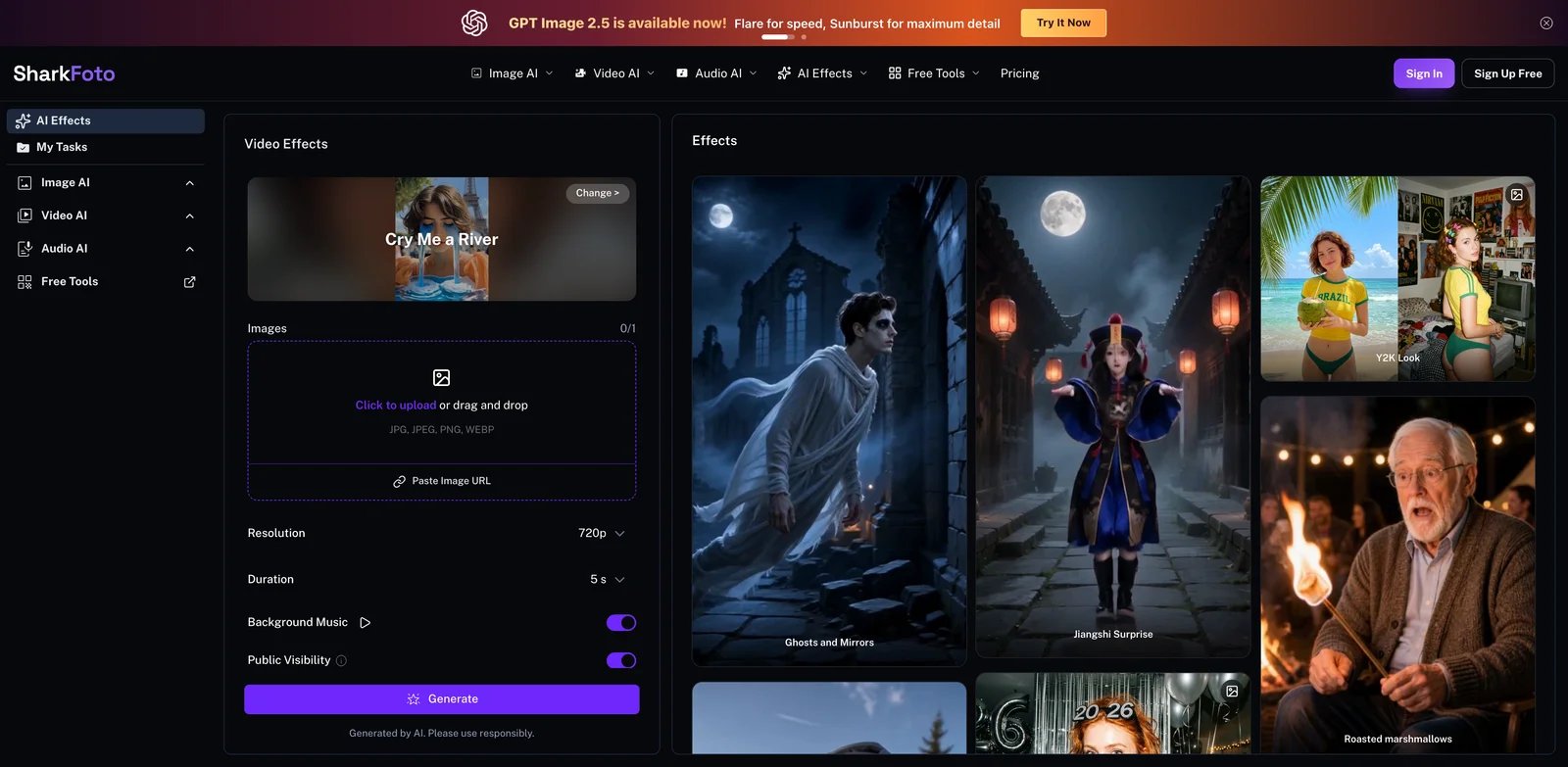
SharkFoto also has an AI Crying Filter for still photos, so the effect name helps you choose the output format. Use Cry Me a River for moving footage and the photo filter for a crying portrait.
The official page advertises ten sign-up credits and watermark-free downloads. Its pricing page shows an annual Personal option at USD 9/month, billed USD 108 annually, with 500 monthly credits. Use the selected video effect's credit debit when planning generations; the sign-up allowance and monthly balance are credit quantities rather than a fixed video count.
Choose SharkFoto for a short photo-to-video tears effect with its own music control.
Direct the Shot or Finish It Inside an Editor
Dreamina
Dreamina combines a reference photo with a written action. Its image-to-video workflow offers model, aspect-ratio, duration and resolution settings, making it useful for directing the crying scene through a prompt.
A scene brief can describe a gentle smile changing to watery eyes, tears rolling down the cheeks, and a slow turn toward the camera. Include the movement and framing you want to explore, then generate the shot with your selected settings.
The video-generator page advertises daily free credits and paid plans with additional credits and download benefits. Regional prices and promotions are shown for the applicable account and billing option. The selected model and generation settings set the credit cost; watermark removal is listed as a paid benefit.
Choose Dreamina when writing the scene, action and camera direction is part of your creative process. The Dreamina tool page introduces its broader image and video workspace.
Filmora Mobile
Filmora Mobile brings crying-scene generation and the final edit into one phone app. Wondershare's crying-filter guide describes the route: Templates → search “cry” → choose a template → upload a picture → optionally revise the prompt → Generate, followed by preview, editing and export.
The mobile template workflow is the route to use for this photo-based generation task. Wondershare separately documents a desktop AR Sad Face sticker for applying an effect on a timeline.
The mobile-versus-desktop comparison lists mobile Pro from USD 9.99/month, with plan-dependent AI credits. Select the mobile plan and crying template together to see the applicable generation and export options; prices can vary by region and plan.
Choose Filmora Mobile when you want to add captions, arrange the clip and prepare the export in the same app that creates the scene.

CapCut's AI crying effect collection describes AI effects that add tears to photos or video, alongside free templates. It suits a creator who wants a social-video layout and editing tools together.
Choose a template whose preview matches your intended scene and whose input count and aspect ratio fit your portrait and post. The selected template provides the applicable access and export options. Its timing, music and text controls help turn the generated effect into a finished social clip.
Choose CapCut when the template's layout and editing sequence are a useful starting point. The CapCut tool page covers its broader editor.
From a Crying Scene to a Finished Post
Match the subject, emotional sequence and framing to your creative brief. An over-the-shoulder scene, a close-up reaction and a walk-away shot each tell a different story. Use the first glance, smile-to-tears transition and final pose to decide which take belongs in the post.
Plan generations using the tool's billing unit. AI Crying offers one-time video packs; Kavel, SharkFoto and Dreamina use credits; mobile editors combine app plans with generation benefits. A pack suits a defined number of clips, while configurable credits suit experimenting with models and settings.
For a silent clip, add the soundtrack during editing or publishing. Use the generator's stated permissions and an appropriately licensed soundtrack for the intended post. Animate a portrait with the subject's consent and describe the clip as AI-generated where that helps viewers understand the scene.
Start with AI Crying for an eight-second over-the-shoulder selfie clip; choose Kavel for configurable prepared scenes, SharkFoto for a dedicated tears effect, Dreamina for prompt direction, and Filmora Mobile or CapCut for generation and editing in an app.
Get ToolWorthy Weekly
New AI tools, practical guides, and selected AI signals in one weekly brief.
Related Posts
- Best Raindance AI Video Generators for Solo and Couple Clips
Choose a Raindance AI video workflow for your photos, with clear differences in solo and duet setup, scene control, output format, audio and payment.
- 5 Gas Station Dance AI Video Generators Compared in 2026
Choose a gas station dance video maker by photo count, output format, preview, credits, and whether it creates the whole three-shot trend or swaps one face.
For AI tool founders
Built a tool that belongs in this decision set?
Request an editorial evaluation for possible inclusion in ToolWorthy.
Submit your tool for reviewPaid submission does not guarantee a ranking, recommendation, inclusion, or editorial outcome.