

Overview
Phantom is a voice-first AI agent for macOS that sits in the Mac notch and helps operate the computer you are already using. You can speak or type a request, and Phantom can interpret the current screen, plan steps, and take actions across apps such as typing, clicking, scrolling, launching applications, using shortcuts, and working with files.
The product is aimed at people who want an AI productivity assistant that does more than answer questions. Instead of switching to a separate chatbot, you can ask Phantom to act inside your current workflow: draft text, move through an interface, prepare a message, organize files, or complete a multi-step desktop task.
Phantom is still a young desktop agent, so users should expect to supervise important actions. Its appeal is the immediacy of voice control, screen context, and Mac-native access in a lightweight interface.
Key Features
- Voice-first Mac control — Phantom accepts spoken commands so users can delegate actions without leaving the app they are currently using.
- Screen-aware context — The assistant can use what is visible on screen when a task requires it, helping reduce the need to explain every detail manually.
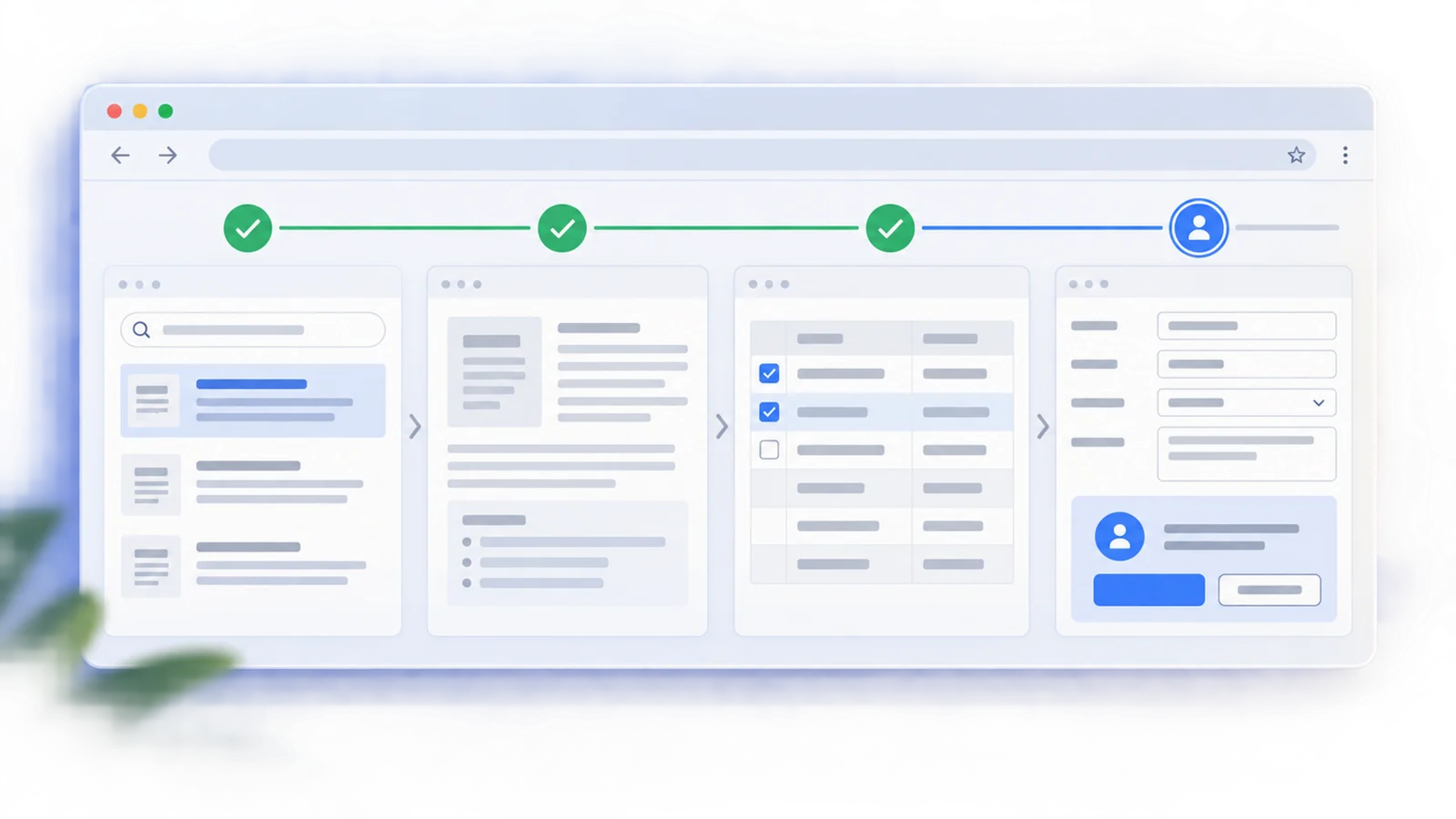
- Agentic workflow planning — Phantom can break a request into steps, execute actions, and verify the result instead of returning only a text answer.
- Desktop actions — The product FAQ says Phantom can type, click, scroll, launch apps, use shortcuts, work with files, and send actions across the Mac environment.
- Text input fallback — Users can still type requests when voice is not convenient, making it practical for shared offices or quiet settings.
How to Get Started
- Download Phantom for Mac from the official website.
- Install the macOS app and sign in or create an account.
- Grant the permissions needed for screen context and desktop actions.
- Open the Phantom notch assistant and try a low-risk task first, such as drafting text or navigating a simple app flow.
- Review important actions before letting the agent complete sensitive tasks.
Because Phantom can interact with your desktop, permission review matters. Start with narrow tasks, understand which apps and files it can access, and avoid delegating financial, legal, or irreversible actions without supervision.
Pricing & Plans
Phantom uses a capacity-based freemium model.
| Plan | Price | Included Usage | Best For |
|---|---|---|---|
| Free | $0/month | Starter capacity with voice commands, dictation, and all features | Trying Phantom and occasional light tasks |
| Pro | $20/month | More monthly capacity | Regular individual users |
| Max | $100/month | Highest monthly capacity | Heavy users who rely on Phantom throughout the workday |
Capacity resets on the billing cycle. Phantom states that there are no overages or top-ups, so users who hit a plan limit need to wait for the reset or upgrade.
Best For
- Mac users who want a fast, screen-aware AI agent for everyday desktop tasks
- Founders, operators, and creators who frequently draft messages, navigate tools, and move information between apps
- Accessibility-conscious users who benefit from voice-first computer control
- Professionals comparing desktop agents such as Manus My Computer with lighter voice-native assistants
- Power users who want app actions without building custom shortcuts or automation scripts
FAQ
What is Phantom?
Phantom is a macOS AI agent that accepts voice or text commands and can operate your Mac using screen context and desktop actions.
Does Phantom have a free plan?
Yes. Phantom lists a Free plan at $0/month with starter capacity and access to voice commands, dictation, and all features.
How much does Phantom Pro cost?
Phantom Pro costs $20/month. The Max plan costs $100/month for the highest listed capacity.
Can Phantom control apps directly?
The official FAQ says Phantom can type, click, scroll, launch apps, use shortcuts, work with files, and send actions, depending on the task and permissions granted.
Does Phantom work on Windows?
No. Phantom is currently positioned as a Mac product.
Does Phantom always watch my screen?
Phantom says it uses screen context when a task requires it. Users should still review app permissions and privacy settings before granting broad desktop access.
Is Phantom suitable for sensitive work?
It can be useful for sensitive workflows only with supervision. Because it can interact with desktop apps and files, users should avoid delegating irreversible actions without checking the steps.
How is Phantom different from a normal voice dictation tool?
Voice dictation converts speech into text. Phantom is designed to understand the task, use screen context, plan steps, and operate apps, which makes it closer to a desktop AI agent.