
12 Best AI Spreadsheet Tools 2026 — Excel, Sheets & Beyond
From Copilot's native Excel integration to Quadratic's Python-in-cells approach — we compared 12 AI spreadsheet tools on formula accuracy, data connectors, and real pricing.

On this page
Every software company with a grid-based UI now calls itself an "AI spreadsheet." The market has exploded past 40+ tools claiming to write your formulas, analyze your data, and automate your workflows — yet most are just thin wrappers around the same LLM API. The real question isn't whether AI can help with spreadsheets (it can), but which tools actually save you time versus adding another $20/month subscription that generates formulas you could have written yourself.
We evaluated 30+ AI spreadsheet tools and narrowed the field to 12 that deliver genuine productivity gains — from native AI spreadsheets that replace Excel entirely to lightweight add-ins that enhance your existing workflow. Each tool was assessed on formula generation accuracy, data analysis depth, integration capabilities, pricing transparency, and real user feedback. Whether you're a finance analyst building models in Excel or a marketing ops manager pulling CRM data into Google Sheets, this comparison helps you find the right tool without the trial-and-error.
| Tool | Best For |
|---|---|
| Google Sheets + Gemini | Teams already in Google Workspace |
| Quadratic | Technical teams needing Python/SQL in spreadsheets |
| Sourcetable | AI-native spreadsheet with data analyst features |
| Microsoft Excel + Copilot | Enterprise Excel users wanting native AI |
| Rows | Data pulling from APIs, PDFs, and databases |
| Formula Bot | Quick formula generation with free tier |
| Coefficient | Live CRM/database connectors for Sheets |
| Bricks | CSV-to-dashboard conversion |
| GPT for Work | Batch text processing in Sheets/Excel |
| Grist | Relational data with AI assistance |
| Numerous.ai | Row-level batch AI operations |
| GPTExcel | Free formula/SQL/VBA generation |
How We Selected and Tested
We started with 34 candidates and filtered down using clear criteria: the tool must use AI for spreadsheet-specific tasks (formula generation, data analysis, automated visualization), support Excel or Google Sheets users, and be available in the US and EU. Pure BI platforms (Tableau, Power BI without spreadsheet features), programming environments (Jupyter), and vertical-only plugins (M&A-specific, accounting-only) were excluded.
Our research combined official product documentation, verified pricing pages, and real user feedback from G2, Google Workspace Marketplace reviews, and community forums. We cross-referenced marketing claims against actual feature availability and noted where tools overpromise.
Evaluation Dimensions: We evaluated each tool across 5 dimensions:
- Formula & analysis depth — Can it handle complex multi-condition formulas, pivot tables, and predictive analysis, or just simple SUM/VLOOKUP?
- Integration with existing workflows — Does it work inside your current spreadsheet, or force you to learn a new platform?
- Data connectivity — Can it pull live data from CRMs, databases, APIs, and files without manual export/import?
- Pricing transparency & true cost — Published pricing, hidden credit limits, API key requirements, and per-seat vs. per-workspace models
- Real user satisfaction — G2 ratings, Marketplace reviews, documented complaints and workarounds
Note on Testing Scope: We tested formula generation, onboarding flows, and basic data analysis across all 12 tools. For enterprise features (Copilot, Rows enterprise), we relied on verified user reviews and official documentation. Research conducted in March-April 2026.
Transparency & Limitations: All pricing and feature data comes from official sources. AI spreadsheet tools update rapidly — specific pricing tiers or feature availability may change after our research date.
Top 12 AI Spreadsheet Tools Compared
This comparison table highlights the dimensions that matter most when choosing an AI spreadsheet tool. Use it to quickly narrow your options before reading the detailed reviews.
| Tool | Best For | Platform | Data Connectors | Free Tier | Starting Price |
|---|---|---|---|---|---|
| Google Sheets + Gemini | Google Workspace teams | Web | Native Google ecosystem | Yes | Included |
| Quadratic | Technical data analysis | Web | Excel/PDF/database import | Yes | Free (Pro $18/user/mo) |
| Sourcetable | AI-native spreadsheet | Web | 50+ integrations | Yes | Free (Pro $20/user/mo) |
| Microsoft Excel + Copilot | Enterprise Excel workflows | Desktop/Web/Mobile | Microsoft ecosystem | No | $21/user/mo annual ($25.20 monthly) |
| Rows | Data pulling & analysis | Web | PDF/API/database | Yes | $8/user/mo (Plus) |
| Formula Bot | Formula generation | Web/Add-on | None (paste data) | Yes | Free (Pro $25/mo) |
| Coefficient | Live CRM data sync | Sheets/Excel add-on | Salesforce/HubSpot/50+ | Yes | $49/mo |
| Bricks | Visual reports from data | Web | CSV/Excel import | Yes | Free (Premium $17.50/seat/mo annual) |
| GPT for Work | Bulk text processing | Sheets/Excel add-on | None (in-sheet) | Limited | $29 min credits |
| Grist | Relational data + AI | Web | CSV/Excel import | Yes | $10/mo (AI add-on) |
| Numerous.ai | Batch row operations | Sheets/Excel add-on | None (in-sheet) | Limited | $10/mo |
| GPTExcel | Free formula help | Web | None (paste data) | Yes (4/day) | Free (Pro $9/mo) |
Detailed Reviews


For the 3+ billion people already using Google Workspace, Gemini in Sheets removes the biggest barrier to AI spreadsheet adoption: there's nothing to install, no API key to configure, and no additional subscription to manage. The AI sits inside the tool you already use, which means the learning curve is essentially zero.
Key Features
- Zero-setup AI integration: Gemini appears as a side panel in Google Sheets — ask it to generate formulas, summarize data, or create charts in plain English. No extensions, no API keys, no billing surprises. For organizations standardized on Google Workspace, this is the path of least resistance.
- Help me organize: Gemini can generate entire spreadsheet templates from a text description. Describe your project tracker or budget template, and it creates the structure with headers, formulas, and formatting — a feature unique to the Google ecosystem.
- Privacy and data boundaries: Google publishes clear documentation on how Workspace data is handled by Gemini, including options to opt out of model training. For compliance-sensitive organizations, this transparency matters more than feature lists.
Pricing
- Google Workspace pricing: Gemini is included in Google Workspace plans, but the current published base pricing is Business Starter $7/user/month with annual commitment ($8.40 when billed monthly), Business Standard $14/user/month annually ($16.80 monthly), Business Plus $22/user/month annually ($26.40 monthly), and Enterprise via contact sales. New-customer promotional discounts may appear separately at checkout.
- Personal availability: Gemini features in Sheets are not universally open on every personal account; current support documentation points to Google AI Pro/Ultra personal accounts and Workspace Experiments access paths, while some newer build/edit spreadsheet features are also limited by rollout status.
The effective cost of Gemini in Sheets is $0 extra if you're already paying for Workspace — making it the cheapest AI spreadsheet option for existing Google shops.
Limitations
- Gemini frequently struggles with basic tasks — users report it fails to highlight cells correctly, mismanages sheet paths, and generates formulas that don't execute as intended
- AI features are optimized for summaries and visualizations, not sustained high-volume operations. For processing thousands of rows with AI, GPT for Work or Numerous.ai handle bulk operations better
- Limited to the Google Sheets formula ecosystem — can't generate VBA macros, Python scripts, or Excel-specific functions
Best For
Teams already standardized on Google Workspace who want AI assistance without adding another tool to the stack. Not the right fit if you need advanced formula generation accuracy, bulk AI operations, or work primarily in Excel.
Get started with Google Sheets + Gemini


Most AI spreadsheet tools bolt AI onto an existing grid. Quadratic builds the spreadsheet from scratch with AI, Python, SQL, and JavaScript as first-class citizens — each running in its own cell type alongside traditional formula cells. If your workflow involves pulling data from an API, transforming it with Python, and presenting results in a spreadsheet grid, Quadratic collapses three tools into one.
Key Features
- Multi-language cell types: Write Python, SQL, or JavaScript directly in spreadsheet cells alongside standard formulas. Data flows between cell types automatically — a Python cell can reference a formula cell and vice versa. No other spreadsheet tool offers this level of code-grid integration.
- AI code generation: Describe what you want in natural language, and Quadratic generates the Python/SQL/formula code. The AI understands the spreadsheet context, so generated code references the correct cell ranges automatically.
- Direct data import: Import from Excel files, PDFs, databases, and APIs without leaving the spreadsheet. Quadratic parses the data into structured grid format, handling the messy extraction that usually requires separate ETL steps.
Pricing
- Personal: Free.
- Pro: $18/user/month billed annually, including $20/month of AI usage.
- Business: $36/user/month billed annually, including $40/month of AI usage.
- Enterprise: Custom pricing.
Limitations
- Requires at least basic comfort with code concepts — non-technical stakeholders won't be able to use Python/SQL cells, and sharing results with them requires exporting to conventional formats
- Performance degrades with very large datasets running multiple simultaneous scripts, which limits its use for enterprise-scale data processing
- Relatively new product with limited public user reviews, making it harder to assess long-term reliability and support quality
Best For
Data analysts and engineers who want Python/SQL capabilities inside a spreadsheet interface rather than switching between Jupyter notebooks and Excel. Not the right fit if your team is non-technical or needs a drop-in replacement for standard Excel/Sheets workflows.
Get started with Quadratic
Sourcetable

Sourcetable positions itself as what happens when you merge a spreadsheet with a data analyst. Instead of just generating formulas, it connects to 50+ data sources, pulls live data, and lets you ask analytical questions in natural language — all within a familiar grid interface. Think of it as the AI analyst you'd hire if they could also be a spreadsheet.
Key Features
- 50+ live data connectors: Connect directly to PostgreSQL, MySQL, Salesforce, HubSpot, Stripe, and dozens more. Data syncs automatically, eliminating the CSV export/import cycle that wastes hours every week for operations teams.
- Natural language analysis: Ask "what's the month-over-month revenue trend for Q1?" and Sourcetable generates the analysis, chart, and supporting data — without writing a single formula. The AI handles the translation from business question to spreadsheet logic.
- Spreadsheet + analyst hybrid: Unlike pure BI tools, Sourcetable keeps the grid editable. You can tweak AI-generated analyses, add your own formulas, and export to Excel. It's the flexibility of a spreadsheet with the intelligence of a BI platform.
Pricing
- Free: The spreadsheet is free to use, with limited AI usage.
- Pro: $20/user/month.
- Max: $200/user/month.
- Student and faculty discounts are available, and some connector-heavy workflows may involve additional connector pricing depending on plan.
Limitations
- Limited customization in visual design — users wanting pixel-perfect dashboards or branded reports will find the formatting options restrictive compared to dedicated BI tools
- Feeding dynamic data can be challenging, with some users reporting inconsistencies when sorting and merging data from multiple sources
- Starter plan restricts access to advanced features, which may require upgrading before you can fully evaluate the platform's capabilities
Best For
Operations and finance teams that pull data from multiple systems into spreadsheets weekly. Sourcetable replaces the manual "export from Salesforce, paste into Excel, build pivot table" workflow. Not the right fit if you need advanced visualization or primarily work with small, single-source datasets.
For more AI-powered data tools, explore our AI data analysis category.
Get started with Sourcetable

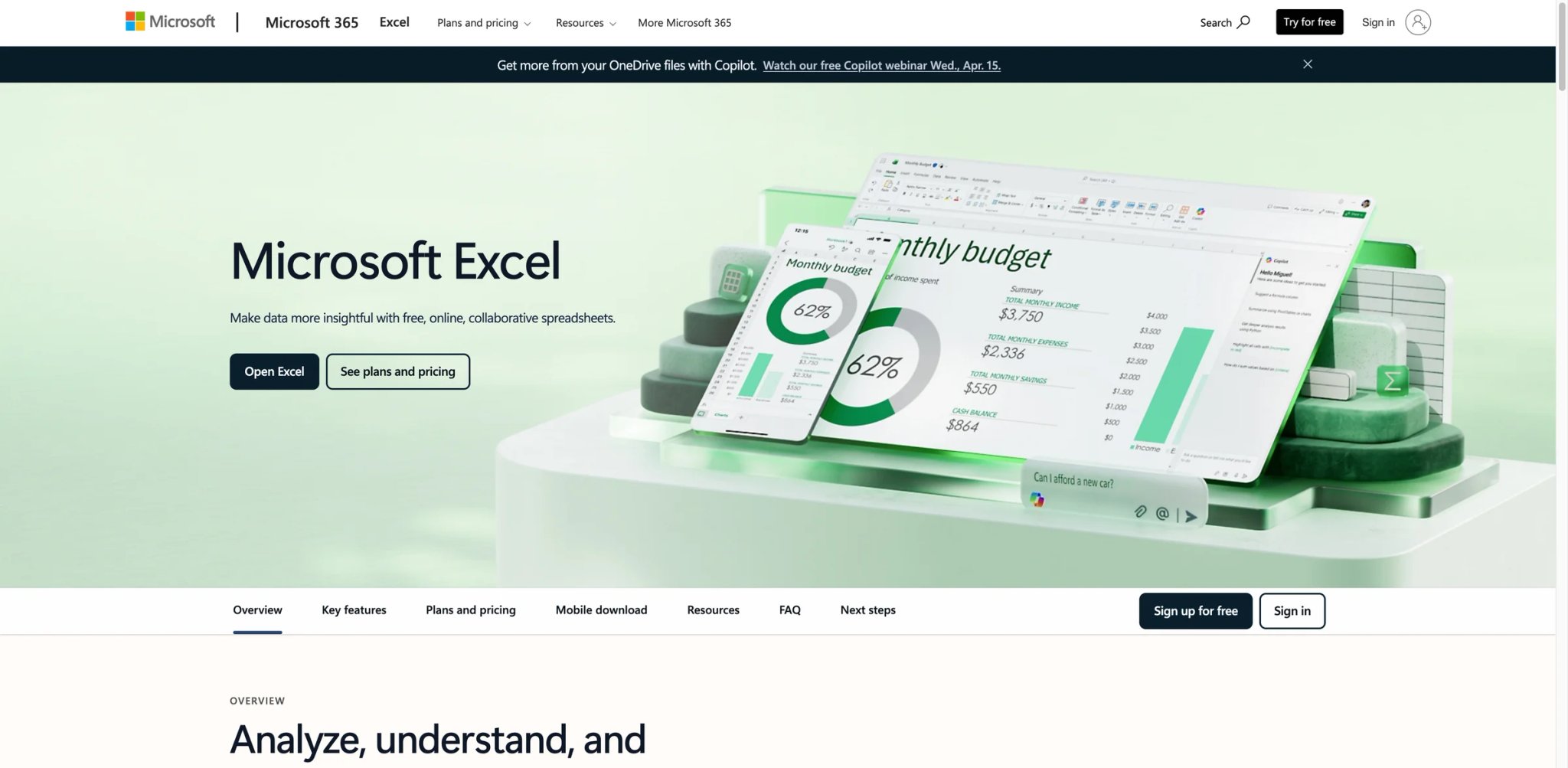
If your organization runs on Microsoft 365 and your team already knows Excel, Copilot is the only AI option that works inside the exact application they use every day. No browser tab switching, no data export, no learning a new interface. You type a question in the Copilot sidebar, and it manipulates the same workbook you're already in.
Key Features
- Native Excel integration: Copilot operates directly within Excel — creating formulas, generating pivot tables, applying conditional formatting, and building charts from natural language prompts. Since January 2026, it's available on web, Windows, and Mac with support for both GPT and Claude models.
- Complex analysis from conversation: Ask Copilot to "find outliers in revenue data" or "compare Q1 vs Q2 performance across regions," and it generates the analysis within your existing workbook. For Excel power users, this eliminates the context-switching overhead of using external AI tools.
- Enterprise-grade security: Data stays within the Microsoft 365 compliance boundary. For regulated industries (finance, healthcare, government), this is often the deciding factor over third-party tools that require data to leave the organization.
Pricing
- Microsoft 365 Copilot Business: starts at $21/user/month when paid yearly, or $25.20/user/month with monthly commitment.
- A separate qualifying Microsoft 365 license is required.
- There is no trial for Microsoft 365 Copilot Business, though eligible customers can use Microsoft 365 Copilot Chat at no additional cost.
The $21/user/mo annual ($25.20 monthly) add-on on top of an existing M365 subscription makes Copilot one of the pricier options on this list. For a 10-person team, that's $210/month for AI spreadsheet features alone.
Limitations
- Copilot in Excel works with data formatted as an Excel table or a supported range, and key Copilot workflows also require AutoSave to be on. For many editing experiences, the workbook must be stored in OneDrive or SharePoint rather than only on a local desktop
- Accuracy is inconsistent for complex analyses. Users report Copilot draws conclusions that look correct but aren't — and the confidence of the output doesn't correlate with its accuracy, making verification essential
- At $21/user/mo (annual) on top of existing M365 costs, the ROI only makes sense for power users who use Excel daily. Occasional spreadsheet users are better served by free alternatives
Best For
Enterprise teams already on Microsoft 365 who need AI assistance without data leaving the compliance boundary. Not the right fit if you're a small team watching costs — the $21/user/mo add-on is hard to justify unless Excel is your primary daily tool.
Get started with Microsoft Excel + Copilot
Rows
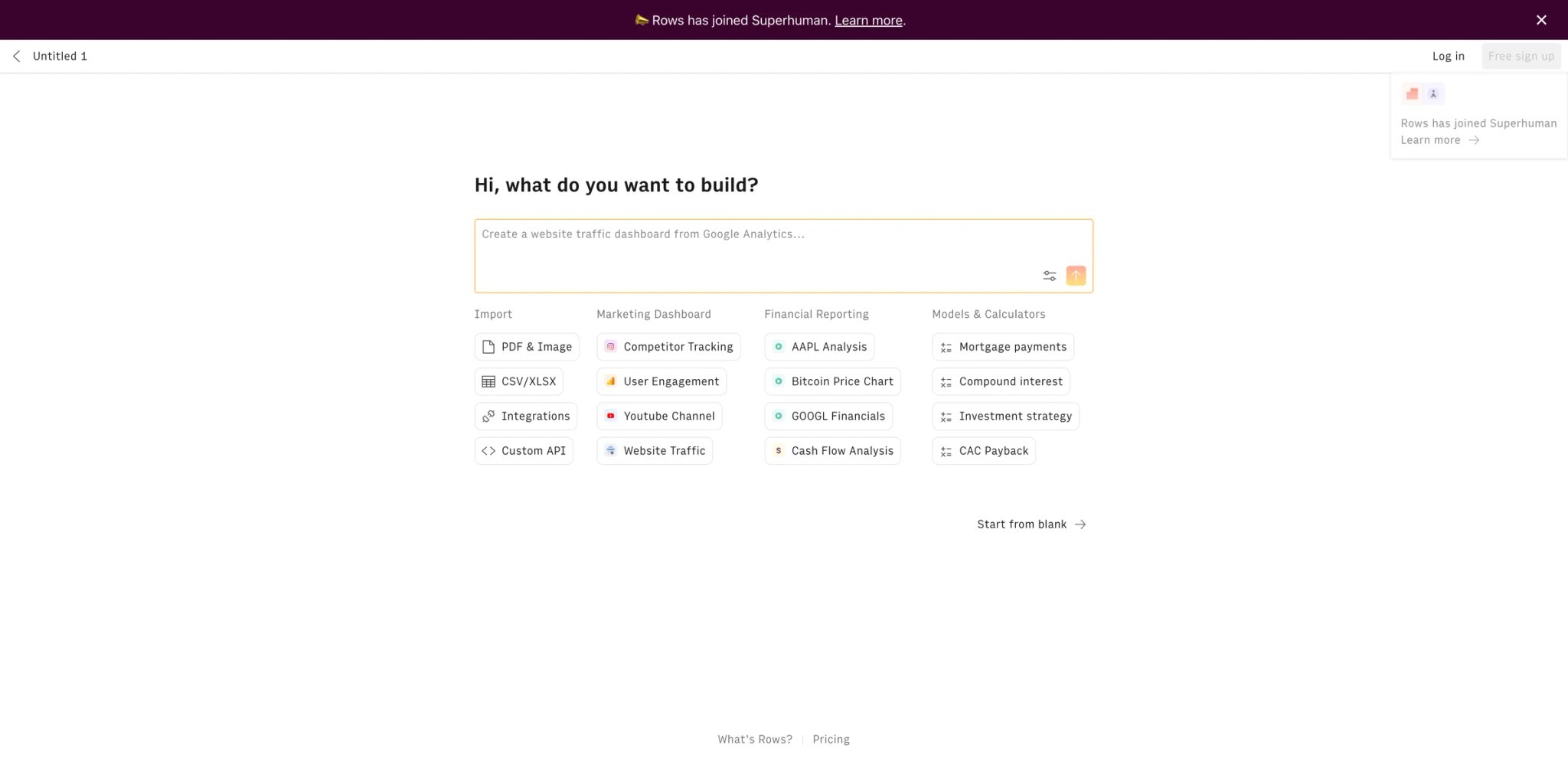
Rows doesn't just add AI to a spreadsheet — it rethinks what a spreadsheet should be when data lives across dozens of systems. Its AI analyst can pull data directly from PDFs, APIs, databases, and web pages, transform it in the grid, and generate charts and summaries — all without leaving one tab. Where most tools need you to bring data in manually, Rows goes and gets it.
Key Features
- AI data pulling: Tell Rows to "import Q1 sales data from this PDF" or "pull the latest exchange rates," and it extracts, structures, and loads the data into your grid. This eliminates the most tedious part of most spreadsheet workflows — getting the data in.
- Built-in data connectors: Native integrations with PostgreSQL, BigQuery, Notion, Stripe, Google Analytics, and 50+ other sources. Data stays live and can auto-refresh on schedule, keeping your reports current without manual updates.
- AI analyst chat: Ask business questions about your data in natural language. Rows generates the analysis, creates visualizations, and explains the methodology — functioning as an on-demand data analyst that works inside your spreadsheet.
Pricing
- Free: Up to 10 AI queries/month, basic features
- Plus: $8/user/mo (team features, more AI)
- Pro: Custom pricing (enterprise)
The per-user pricing makes Rows competitive for small teams but adds up at scale — significantly more than Google Sheets + Gemini or Formula Bot for larger organizations.
Limitations
- The interface is substantially different from Excel/Sheets, creating onboarding friction for teams accustomed to traditional spreadsheets. Expect 1-2 weeks of adjustment before productivity matches your old workflow
- Advanced data manipulation for complex use cases may still require external tools, as Rows prioritizes breadth of data sources over depth of transformation capabilities
- Per-user pricing adds up quickly for larger teams compared to add-in alternatives with flat pricing
Best For
Marketing ops, RevOps, and data teams that spend significant time pulling data from multiple sources into spreadsheets. If your weekly workflow involves "export from Salesforce, export from Google Analytics, merge in Excel," Rows eliminates those manual steps. Not the right fit if you primarily work with local Excel files or need advanced Excel-specific features like VBA macros.
Get started with Rows
Formula Bot
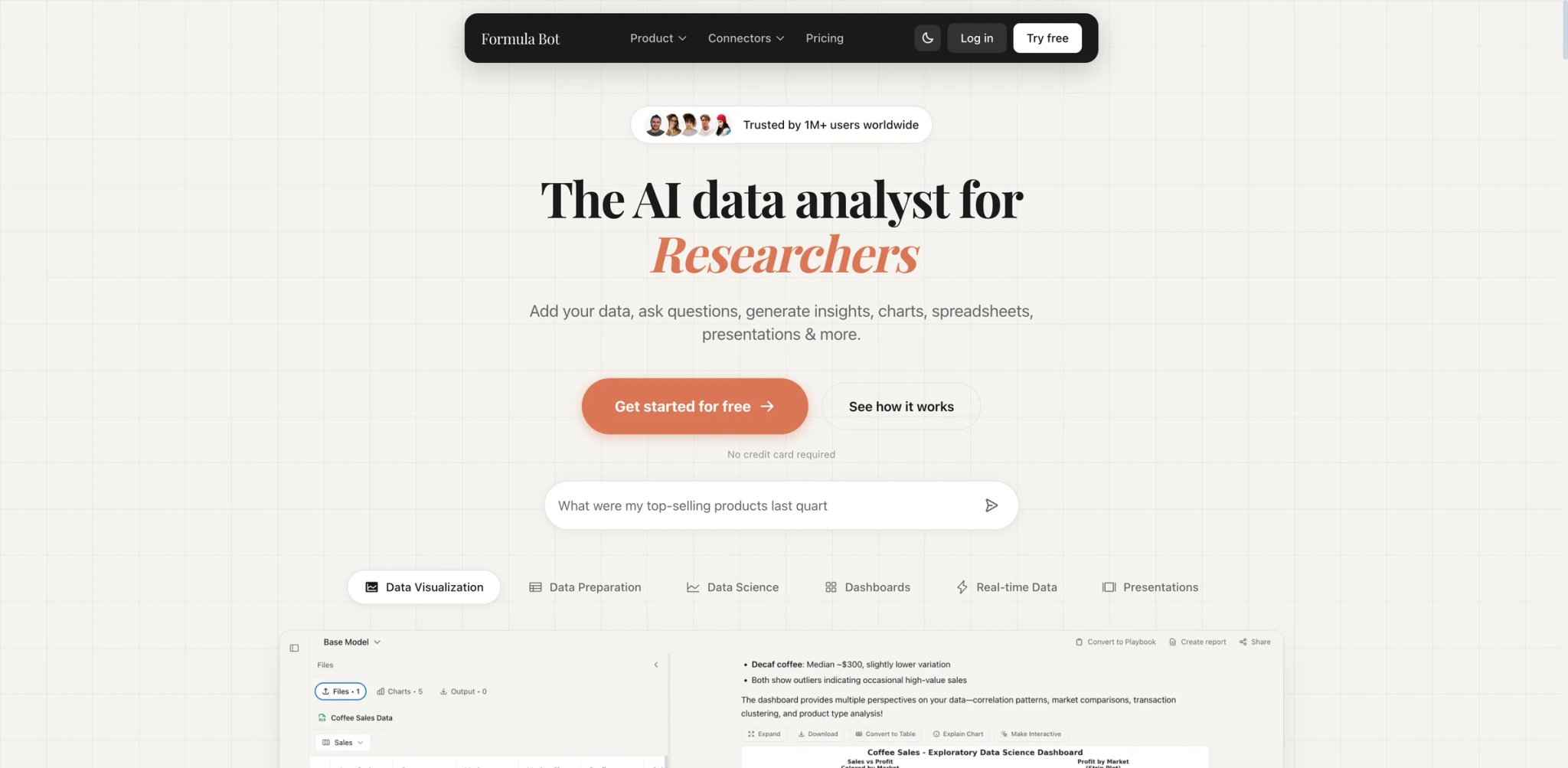
$99/month for AI formula generation is overkill when all you need is help writing a VLOOKUP. Formula Bot delivers the core feature — converting plain English descriptions into Excel or Google Sheets formulas — with a usable free tier and paid plans starting at just a few dollars per month. No add-in installation, no API keys, no platform lock-in.
Key Features
- Natural language to formula: Describe what you want ("find the average of column B where column A equals 'Q1'") and get an Excel or Google Sheets formula back instantly. Formula Bot handles VLOOKUP, INDEX-MATCH, array formulas, and conditional logic.
- Formula explanation: Paste any formula and get a plain English breakdown of what it does — invaluable for inheriting someone else's complex spreadsheet or debugging your own.
- Data analysis and visualization: Upload a CSV or paste data, and Formula Bot generates charts, pivot summaries, and basic predictive insights. It's not as deep as Sourcetable or Rows, but it handles the 80% use case without requiring a separate tool.
Pricing
- Free: $0/month with 10 messages, 25 AI Actions, 5 files per chat, and a 5MB upload limit.
- Pro: $25/month or $18/month billed yearly.
- Max: $29/seat/month or $20.33/seat/month billed yearly.
- Enterprise: $149/seat/month or $99/seat/month billed yearly.
- No API key is required.
Limitations
- Complex formulas with 4-5 nested conditions sometimes produce incorrect results — the AI's accuracy correlates with prompt clarity, so vague descriptions yield unreliable formulas
- Limited customization for industry-specific or highly specialized formulas. VBA scripts generated by the AI often need manual adjustment for production use
- Formula Bot now offers Excel and Google Sheets add-ons on paid plans. The bigger limitation is not a lack of spreadsheet integration, but that advanced usage is gated by plan limits such as AI Actions, upload caps, and workspace features
Best For
Individual users who need occasional formula help without committing to a paid subscription. The free tier covers casual use, and the web-based approach means no compatibility concerns. Not the right fit if you need in-sheet AI (add-in integration) or handle bulk formula generation across hundreds of cells.
Get started with Formula Bot

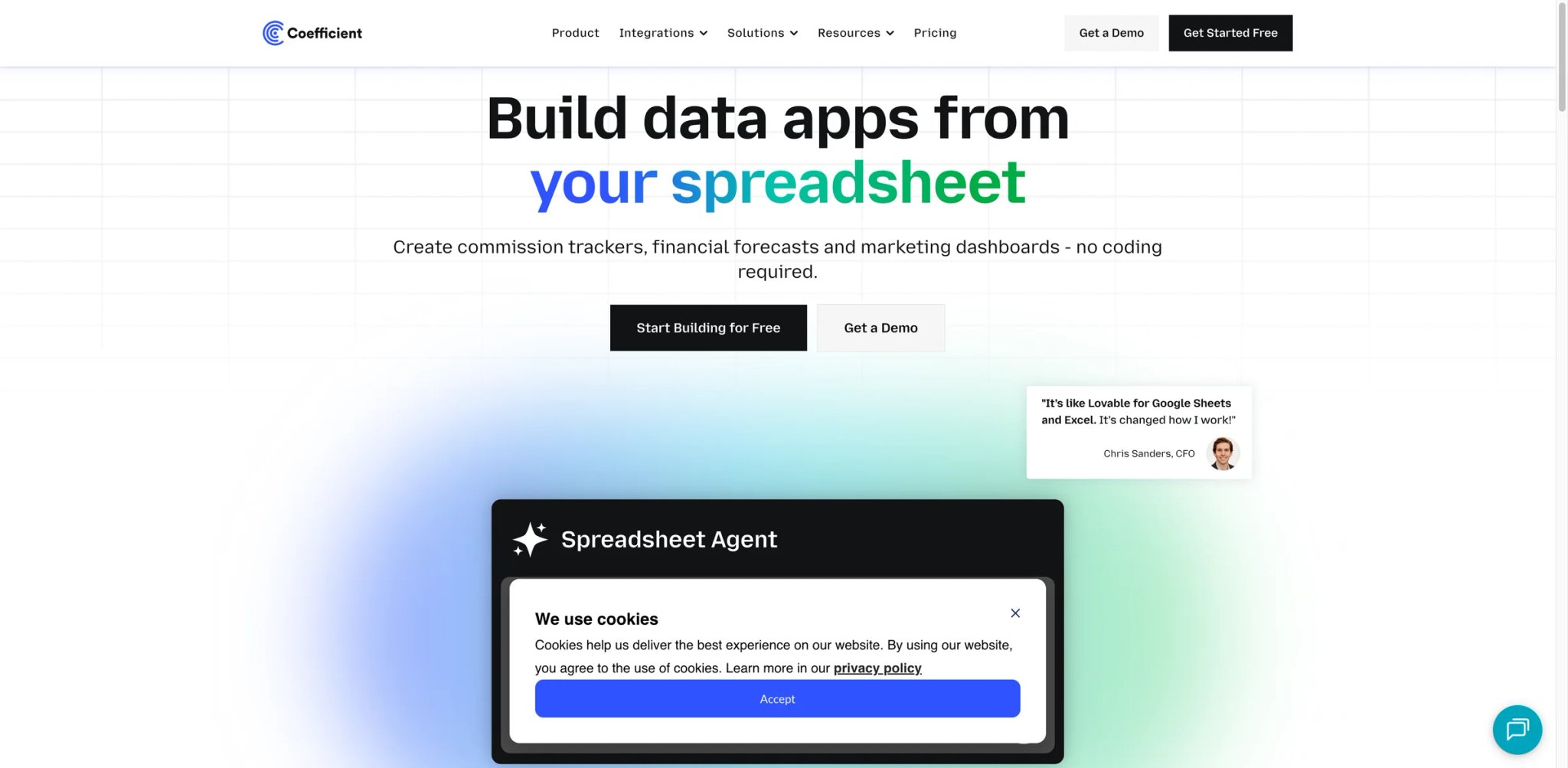
Most AI spreadsheet tools help you work with data that's already in your sheet. Coefficient solves the step before that — getting live data from your business systems into Google Sheets or Excel automatically. Its 50+ connectors to Salesforce, HubSpot, Snowflake, and other platforms eliminate the "export CSV, import to Sheets, repeat tomorrow" cycle that wastes hours every week.
Key Features
- 50+ live data connectors: Pull real-time data from Salesforce, HubSpot, Jira, Snowflake, BigQuery, and dozens more directly into your spreadsheet. Data refreshes automatically on schedule, so your reports are always current without manual intervention.
- GPT Copilot for analysis: Once data is in your sheet, Coefficient's AI helps analyze it — generating formulas, creating summaries, and answering questions about your data. The combination of live connectors + AI analysis in one add-in is what separates it from formula-only tools.
- Write-back to source systems: Unique among spreadsheet tools — Coefficient can push changes from your spreadsheet back to Salesforce, HubSpot, and other connected systems. Edit a deal stage in Sheets, and it updates in your CRM automatically.
Pricing
- Free: Limited connectors and refreshes
- Starter: $49/mo
- Pro: Custom pricing
Limitations
- Extracting large datasets is slow, leading to delays in reporting that could result in decisions based on stale data
- No proprietary charts or visualization features — you're limited to native Google Sheets or Excel charting, which restricts data exploration compared to BI tools
- Pricing is geared toward enterprise customers. The $49/mo starter plan may not be cost-effective for freelancers or small teams with simpler data needs
Best For
Revenue operations and sales analytics teams that need live CRM data in spreadsheets without manual exports. The write-back capability makes it especially valuable for teams that use Sheets as their operational interface. Not the right fit if your data is already local (CSV files, manual entry) or you need advanced visualization beyond native spreadsheet charts.
Get started with Coefficient
Bricks

Bricks bridges the gap between "data in a spreadsheet" and "data in a presentation." Upload a CSV or Excel file, and Bricks converts it into interactive dashboards, project timelines, Kanban boards, and org charts — all driven by AI, no formulas required. It's the fastest path from raw data to visual output we tested.
Key Features
- Instant visual conversion: Upload any spreadsheet data and Bricks generates dashboards, calendars, Gantt charts, and project trackers automatically. The AI interprets column headers and data types to suggest appropriate visualizations — a task that usually takes hours in Excel or Sheets.
- AI-powered formulas without formulas: Describe what you want in natural language, and Bricks handles the calculation. "Calculate the running total of column C grouped by month" works without knowing the SUMIF or OFFSET syntax.
- Clean web-first interface: The UX is noticeably smoother than traditional spreadsheet tools. Drag-and-drop layout, real-time collaboration, and responsive design make it feel like a modern productivity app rather than a 1990s grid.
Pricing
- Free: $0/user/month.
- Premium: $25/user/month monthly, or $17.50/user/month billed annually.
- Pro: $100/user/month monthly, or $70/user/month billed annually.
- Enterprise: Custom pricing.
Limitations
- No API access — Bricks can't integrate into automated workflows or connect to external data sources programmatically, limiting its usefulness for teams that need data pipelines
- Integration with existing software platforms is limited. If your workflow depends on connecting to Salesforce, databases, or other business systems, Coefficient or Sourcetable are better options
- Complex data manipulations still require traditional spreadsheet tools. Bricks excels at visualization and presentation, not deep data analysis
Best For
Project managers and team leads who need to turn spreadsheet data into visual reports and dashboards quickly. Also works well for startups wanting a modern spreadsheet alternative without Excel's complexity. Not the right fit if you need deep data analysis, API integrations, or work with data that stays in traditional Excel format.
Get started with Bricks
GPT for Work
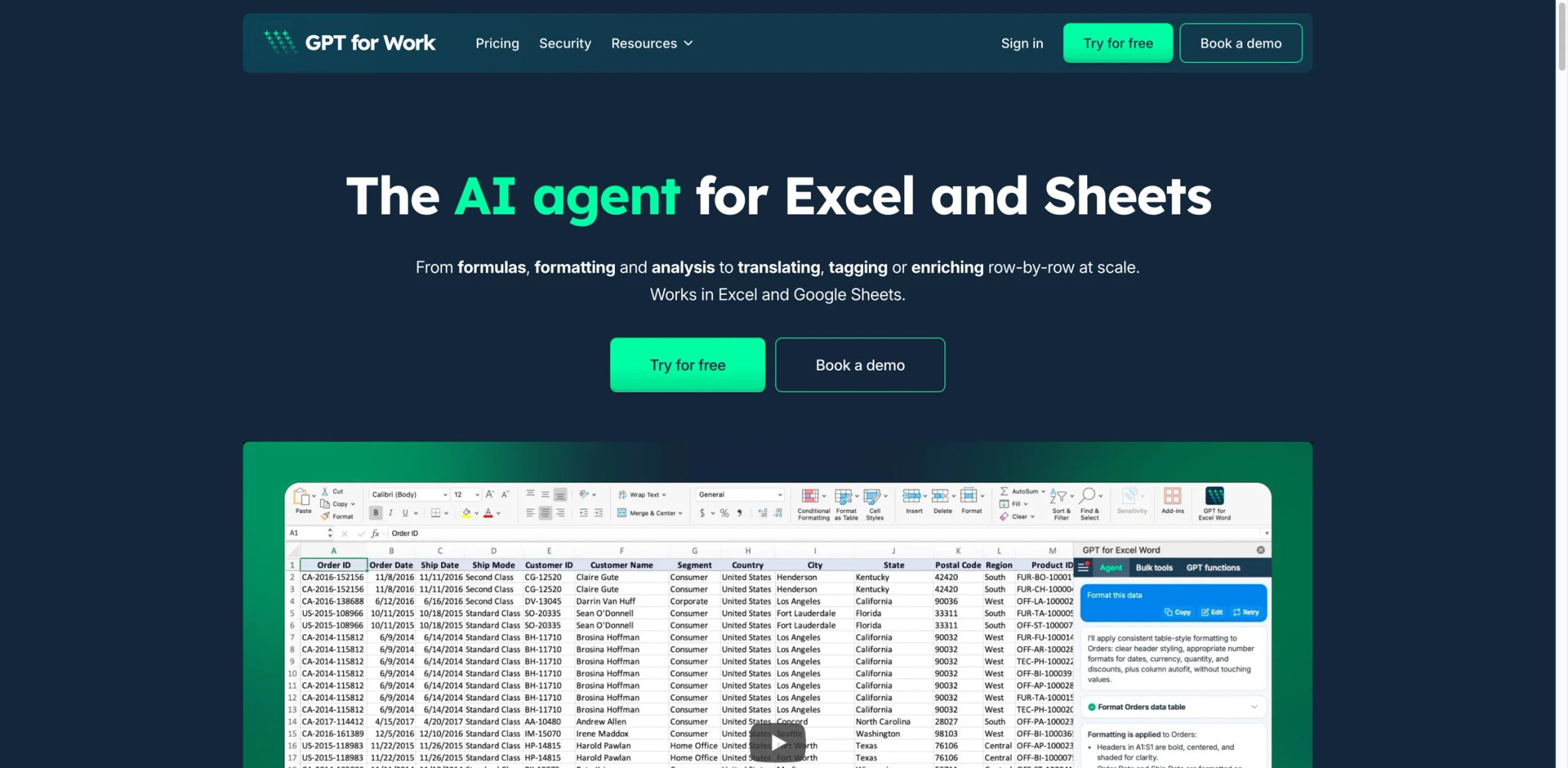
GPT for Work turns Google Sheets and Excel into a bulk text processing engine. Need to categorize 5,000 support tickets, translate product descriptions into 10 languages, or extract key entities from a column of raw text? GPT for Work runs AI operations across entire columns using custom functions — treating the spreadsheet as a batch processing interface rather than just a calculation grid.
Key Features
- Custom AI functions in cells: Use
=GPT()and related functions directly in spreadsheet cells. Write a prompt once, drag it down 10,000 rows, and GPT for Work processes each row independently. This is the most scalable approach to bulk AI operations in a spreadsheet. - Bring your own API key: Unlike subscription-based tools, GPT for Work uses a pay-per-use credit model ($29 minimum purchase, credits valid 12+ months). For teams that already have an OpenAI API key, this avoids double-paying for AI access.
- Multi-model support: Choose between GPT-4, GPT-4o, Claude, and other models per function. Different tasks can use different models within the same sheet — use a cheaper model for classification and a more capable one for summarization.
Pricing
- Usage model: GPT for Work is sold on a pay-per-use credit basis, not as a one-time lifetime add-on.
- Minimum purchase: $29 in credits.
- Billing: Top up anytime, with credits valid for at least 12 months.
- Positioning: pooled credits rather than per-seat monthly pricing.
The credit-based model is transparent but unpredictable — processing 10,000 rows might cost $5 or $50 depending on prompt complexity and model choice. Budget-conscious users should test with small batches first.
Limitations
- Requires your own API key for advanced usage, which creates a technical barrier for non-technical users who aren't comfortable managing API accounts and monitoring token usage
- Large spreadsheet operations can hit timeouts on complex bulk operations, requiring manual batch splitting for datasets over a few thousand rows
- No data connectors or analysis features — GPT for Work is purely a text processing layer, not a data analyst. For pulling data from external sources, you'll need Coefficient or Rows alongside it
Best For
Marketing teams, SEO specialists, and data operators who need to process thousands of text entries in spreadsheets — categorization, translation, extraction, summarization. Not the right fit if you want formula generation, data analysis, or data connectivity features. GPT for Work is a text processing tool, not a general AI spreadsheet assistant.
For a broader view of AI productivity tools, check out our AI tool rankings.
Get started with GPT for Work
Grist
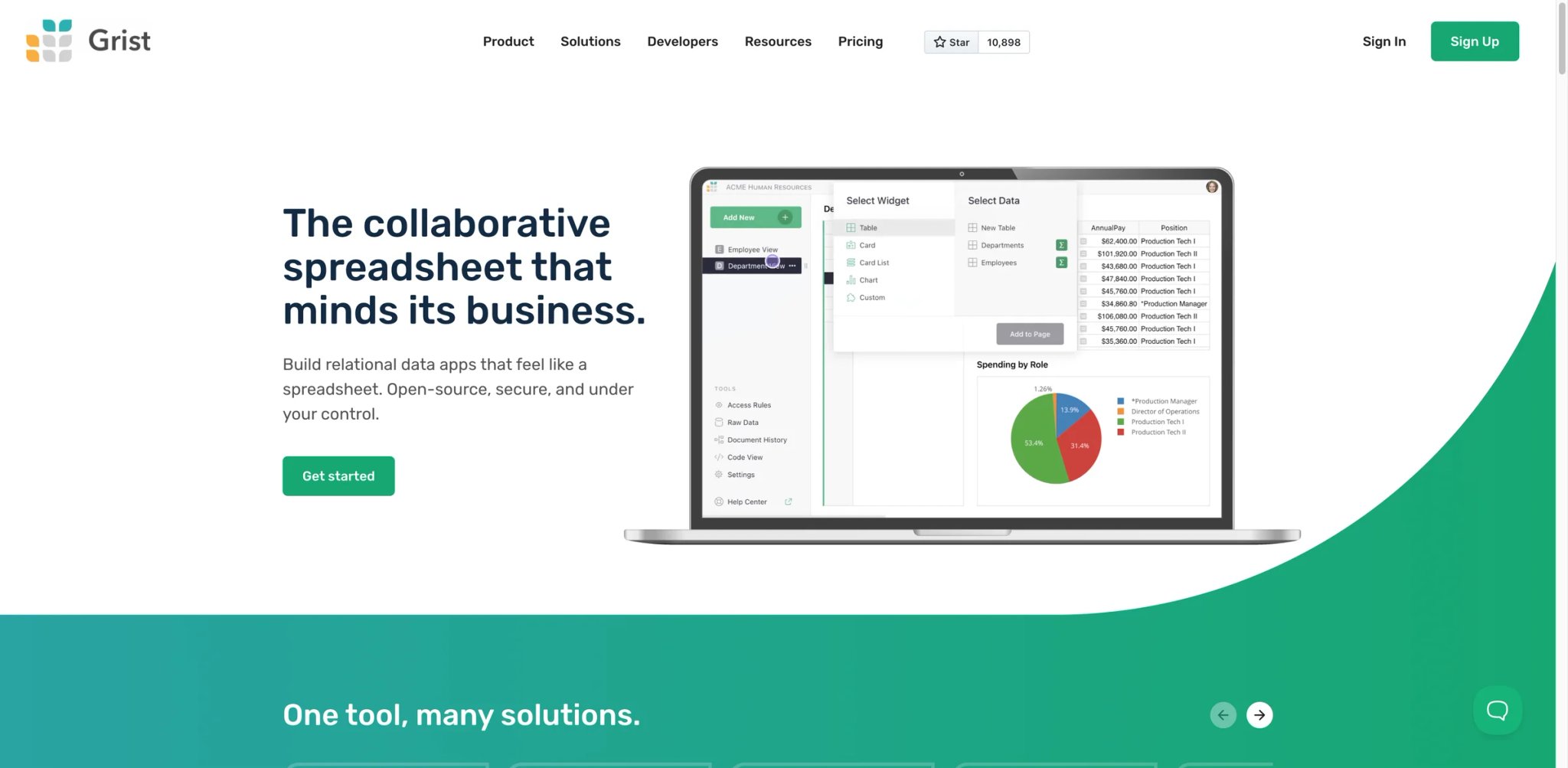
Grist sits between a spreadsheet and a database — it looks like a grid but stores data in relational tables with proper data types, foreign keys, and access controls. Adding AI on top of this structure means the AI understands relationships between your data, not just individual cells. Open-source and self-hostable, Grist appeals to teams that want control over both their data and their AI.
Key Features
- Relational spreadsheet structure: Unlike flat grids, Grist tables can reference each other through relationships. A "Projects" table can link to "Tasks" and "Team Members" with proper foreign keys — making data management cleaner and queries more powerful than VLOOKUP chains.
- AI assistant with context: Grist's AI understands the relational structure of your data. Ask it to "show me overdue tasks by team member" and it traverses table relationships automatically — something traditional spreadsheet AI can't do because it only sees flat rows.
- Open-source and self-hostable: The core product is open-source (grist-core on GitHub), meaning you can host it on your own infrastructure. For organizations with strict data residency requirements, this eliminates third-party data handling concerns entirely.
Pricing
- Free: Core features, limited AI credits
- Pro: $10/mo (AI credits add-on)
- Business: $30/mo (team features)
- Self-hosted: Free (grist-core)
Limitations
- No mobile application — you can only access Grist through a web browser, which limits on-the-go data access for teams that need mobile workflows
- The interface looks dated compared to modern alternatives like Bricks or Rows. Users accustomed to polished UIs may find Grist's aesthetic functional but uninspiring
- Learning curve is steeper than traditional spreadsheets because the relational model requires different thinking. Teams used to flat Excel files need training to take advantage of Grist's structure
Best For
Teams managing structured, relational data (project management, inventory, CRM-style records) who want spreadsheet accessibility with database capabilities. The self-hosting option makes it ideal for organizations with data sovereignty requirements. Not the right fit if you primarily need formula assistance or work with simple, flat datasets that don't benefit from relational structure.
Get started with Grist
Numerous.ai

Numerous.ai focuses on one thing GPT for Work also does — running AI operations across spreadsheet rows — but packages it with a simpler setup, no API key requirement, and team-friendly features like result caching and shared prompts. At $10/month, it's the most affordable dedicated AI add-in for batch operations.
Key Features
- No API key required: Unlike GPT for Work, Numerous.ai includes AI access in its subscription. Install the add-in, start using
=AI()functions immediately. This removes the technical barrier that keeps non-developer teams from adopting AI spreadsheet tools. - Result caching: AI outputs are cached, so reopening a sheet or refreshing doesn't re-run (and re-charge) the same operations. For teams running weekly reports, this prevents duplicate processing costs.
- Team prompt sharing: Save and share AI prompts across your organization. A prompt that categorizes support tickets or extracts product features can be reused by anyone on the team without rebuilding it.
Pricing
- Starter: $10/mo (individual)
- Team: Custom pricing
- Limited free trial available
Limitations
- Feature depth is narrower than comprehensive tools like Sourcetable or Rows — Numerous.ai handles text operations well but doesn't offer data connectors, charting, or analytical features
- User reviews are mixed, with some reporting the app as difficult to use and others praising its simplicity. The onboarding experience varies significantly based on use case
- Accuracy of AI outputs depends heavily on prompt quality — the tool provides less guardrail or guidance than Formula Bot's more structured interface
Best For
Small teams and individual users who need batch AI processing in Sheets/Excel without managing API keys or complex pricing. The $10/mo flat rate makes budgeting predictable. Not the right fit if you need data connectors, visualization, or analytical features beyond text processing.
Get started with Numerous.ai
GPTExcel
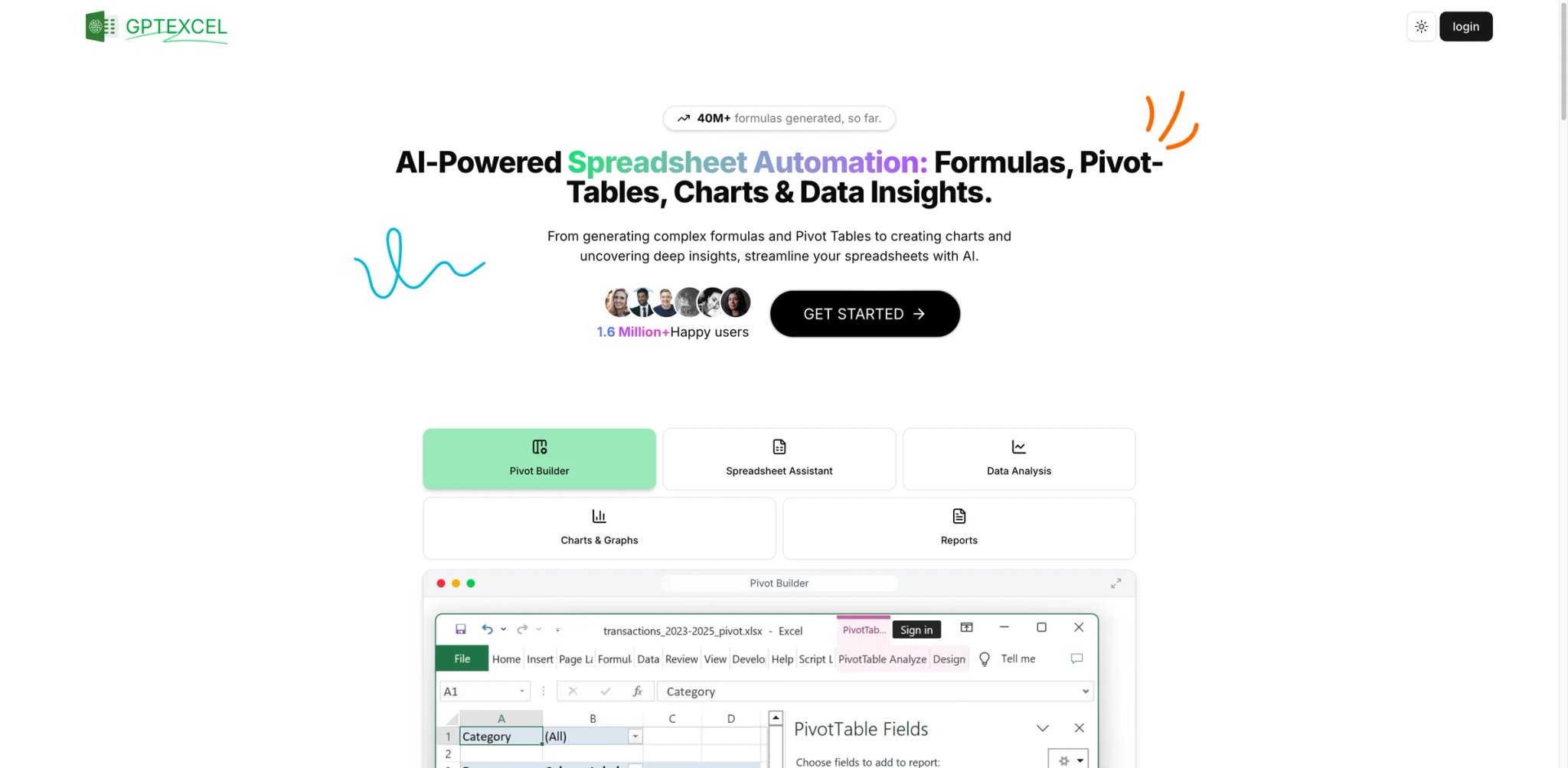
GPTExcel offers the widest coverage of spreadsheet-adjacent code generation at the lowest price: Excel formulas, Google Sheets formulas, SQL queries, regex patterns, VBA scripts, and chart specifications — all from a single web interface, with a genuinely usable free tier.
Key Features
- Multi-format code generation: Beyond Excel and Sheets formulas, GPTExcel generates SQL queries, regex patterns, VBA macros, and Google Apps Script. If your workflow touches multiple tools (Excel for reports, SQL for databases, VBA for automation), GPTExcel covers them all from one place.
- Formula explanation and debugging: Paste a complex formula or SQL query, and GPTExcel explains it in plain English. For teams inheriting undocumented spreadsheets or database queries, this feature alone justifies the free tier.
- Genuinely free tier: 4 requests per day at no cost, no credit card required. For occasional formula help, you may never need to upgrade.
Pricing
- Free: $0, including 4 tool uses per day and 10 AI chat messages refreshed every 30 days.
- Pro: $9/month, or $6.30/month billed annually.
- Pro Plus: $18/month, or $12.60/month billed annually.
Limitations
- Web-only with no spreadsheet integration — every formula requires copy-pasting from the browser into your spreadsheet, adding friction compared to in-sheet tools
- Generated formulas and scripts are best for simple to moderately complex tasks. Advanced scenarios often require manual correction, and the tool doesn't learn from your corrections
- Limited to formula/code generation — no data analysis, no connectors, no visualization. It's a translator, not an analyst
Best For
Individual users who need a free, multi-format code helper for occasional spreadsheet, SQL, and VBA tasks. Trusted by 300,000+ users. Not the right fit if you need in-sheet AI integration, data analysis, or anything beyond formula/code generation.
Looking for more productivity-focused AI tools? Browse our AI spreadsheet tools category for additional options.
Get started with GPTExcel
Best AI Spreadsheet Tools by Use Case
For Finance Teams Building Models in Excel
If your week involves financial models, budget forecasts, and variance analysis inside Excel workbooks, Microsoft Excel + Copilot keeps AI within the application and compliance boundary you already trust. The $21/user/mo (annual) premium is justified when accuracy matters and data can't leave the organization. If budget is tighter, Formula Bot handles formula generation for free and works with both Excel and Sheets formulas.
For Operations Teams Pulling Data from Multiple Systems
You're exporting CSVs from Salesforce on Monday, pasting them into Sheets on Tuesday, and building a report on Wednesday. Coefficient eliminates the export/import cycle with live connectors that auto-refresh. Sourcetable is the stronger choice if you also need AI-powered analysis on top of the connected data, not just the data feed itself.
For Marketing Teams Processing Bulk Content
Categorizing 5,000 leads, translating product descriptions, or extracting keywords from competitor pages — this is text processing at scale. GPT for Work offers the most flexibility with multi-model support and pay-as-you-go pricing. Numerous.ai at $10/mo is simpler to set up if your team doesn't want to manage API keys.
For Technical Teams Doing Data Analysis
Your analysis requires Python transformations, SQL queries, and statistical modeling — but you want results in a shareable grid, not a Jupyter notebook. Quadratic puts Python/SQL cells alongside spreadsheet cells in one interface. Rows is the better option if you prioritize pulling data from external APIs and databases over in-sheet coding.
For Budget-Conscious Individual Users
You need occasional formula help and don't want another subscription. GPTExcel provides free formula, SQL, and VBA generation (4 requests/day). Google Sheets + Gemini adds AI features at no extra cost if you already have a Google account. Grist is free and open-source if you need a self-hosted option.
How to Choose the Right AI Spreadsheet Tool
Step 1: Start from your existing platform. If your team uses Excel, evaluate Copilot and Excel add-ins (GPT for Work, Coefficient, Numerous.ai) first. If you're on Google Sheets, consider Gemini and Sheets add-ins. Platform switching costs are high — choose tools that enhance what you already use before considering AI-native alternatives.
Step 2: Identify your actual bottleneck. Writing formulas? Formula Bot or GPTExcel. Getting data into sheets? Coefficient or Rows. Analyzing data already in sheets? Sourcetable or Quadratic. Bulk text processing? GPT for Work or Numerous.ai. Most teams only need one category of AI help.
Step 3: Test with your real data before committing. Every tool on this list offers a free tier or trial. Run your actual weekly workflow through it — don't just test with sample data. AI accuracy varies dramatically between simple demos and real-world messy datasets.
Step 4: Calculate total cost of ownership. Copilot at $21/user/mo (annual) costs $2,520/year for a 10-person team. Numerous.ai at $10/mo costs $120/year for an individual. GPTExcel costs $0 for occasional use. Match the tool's price to its actual usage frequency in your workflow — daily users can justify premium pricing, weekly users probably can't.
Step 5: Check what the AI can't do. Every tool here has blind spots. Copilot struggles with unstructured data. Gemini fails on bulk operations. Formula Bot can't integrate with your sheet directly. Identify the one limitation that would break your workflow and eliminate tools that have it.
For our methodology on evaluating AI tools, see our tool selection standards.
Frequently Asked Questions
Is Google Sheets with Gemini good enough, or do I need a separate AI tool?
Can AI spreadsheet tools replace a data analyst?
Which AI spreadsheet tool works best with Excel?
Are AI-generated formulas accurate enough to trust?
What's the cheapest way to add AI to my spreadsheets?
Should I choose an AI spreadsheet add-in or an AI-native spreadsheet platform?
Do AI spreadsheet tools send my data to external servers?
Can I use AI spreadsheet tools for collaborative team work?
Get ToolWorthy Weekly
New AI tools, practical guides, and selected AI signals in one weekly brief.
For AI tool founders
Built a tool that belongs in this decision set?
Request an editorial evaluation for possible inclusion in ToolWorthy.
Submit your tool for reviewPaid submission does not guarantee a ranking, recommendation, inclusion, or editorial outcome.