
Best AI Image Upscaler in 2026: 10 Tools Compared
Compare 10 AI image upscalers for 2026 by source image, output use, workflow, privacy, licensing, and pricing model.
On this page
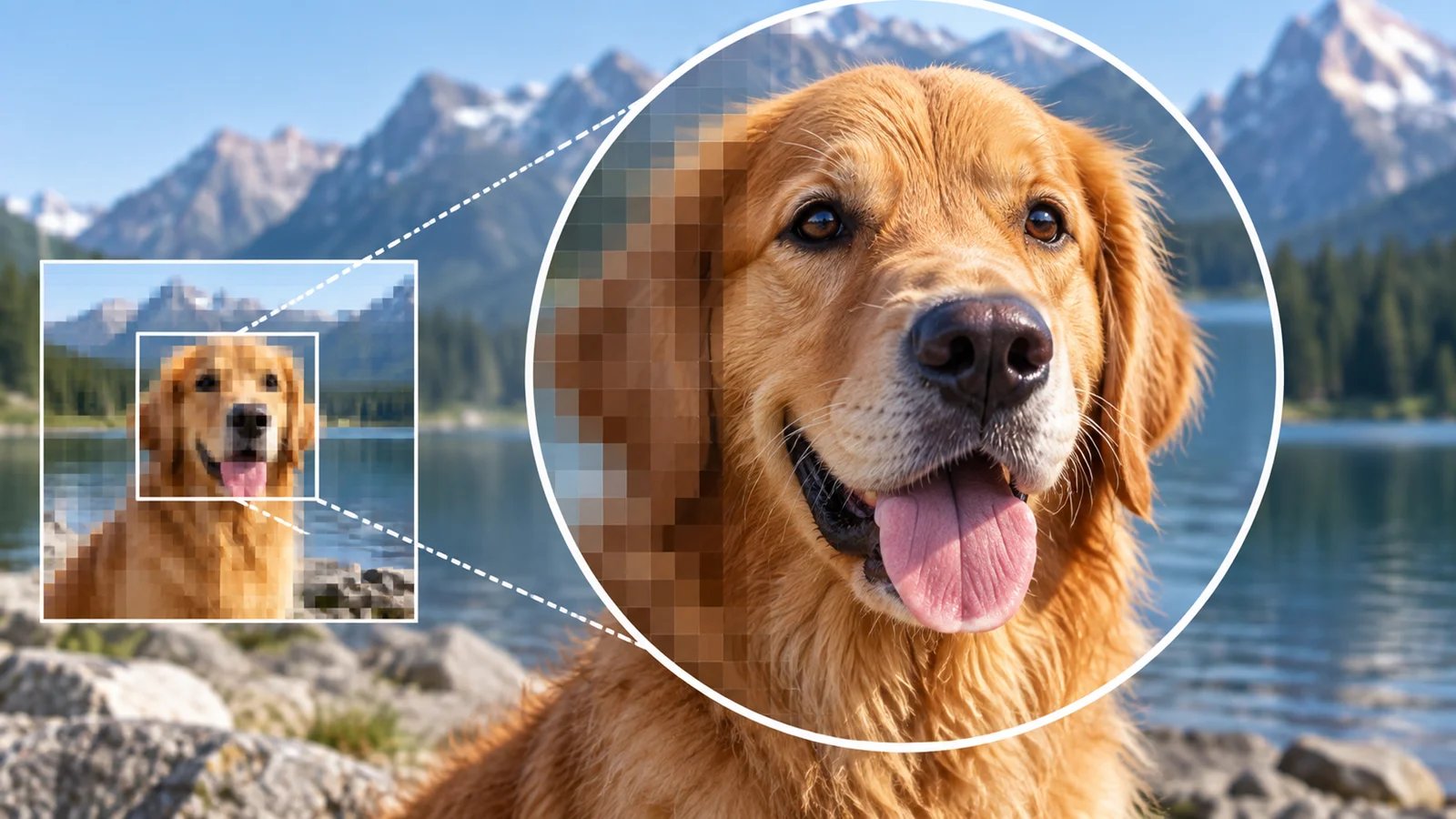
Finding the best AI image upscaler in 2026 has become critical as e-commerce, social media, and AI-generated content demand high-resolution imagery. Whether you're an Amazon seller meeting marketplace requirements, a photographer salvaging underexposed shots, or a designer preparing print-ready assets, the right upscaling tool makes the difference between professional results and pixelated disappointments. Yet users face common frustrations: quality loss, unnatural AI artifacts, confusing pricing, and privacy concerns. This guide evaluates 10 leading tools through detailed comparisons, in-depth reviews, and scenario-based recommendations to help you choose the best AI image upscaler for your specific workflow and budget.
To map capabilities, workflows, integrations, and the wider market without rankings, browse the AI Image Upscalers category landscape.
Here's a quick overview of the top 10 AI image upscalers to help you identify the right tool at a glance:
| Tool | Best For |
|---|---|
| Topaz Gigapixel | Professional photographers needing desktop controls, batch processing, and local-rendering options |
| VanceAI Image Upscaler | E-commerce teams requiring fast batch processing, API access, and multiple AI models |
| Let's Enhance | Creative professionals balancing ease of use with solid quality for marketing and design work |
| Upscale.media | Casual users and testers wanting free, no-account-required upscaling for quick tasks |
| Icons8 Upscaler | Designers and marketers working with illustrations, graphics, and Icons8 ecosystem |
| HitPaw Image Upscaler | Hobbyists and privacy-focused users preferring offline desktop processing |
| Adobe Image Upscaler | Creative Cloud subscribers needing seamless Photoshop integration and Adobe ecosystem |
| Clipdrop Image Upscaler | Content creators and influencers requiring mobile-friendly, fast social media workflows |
| AVCLabs Photo Enhancer | Photo restoration enthusiasts wanting bundled denoising, colorization, and face restoration |
| Magnific AI | AI artists and experimental creatives refining generative art with creative reinterpretation |
Decision Shortcut: Start With the Source Image, Not the Brand
| Your actual constraint | Shortlist first | What to verify with your own files |
|---|---|---|
| Faithful detail in real photos, print, or client work | Topaz Gigapixel or Adobe | Faces, text, fine texture, local-versus-cloud models, and commercial-use coverage |
| Free desktop processing with no upload | Upscayl Desktop | Hardware compatibility and output on difficult faces, text, and compressed sources |
| Creative reinterpretation of AI-generated art | Magnific AI | Whether invented detail supports the artwork or changes important elements |
| Fast browser-based work with little setup | Upscale.media or Clipdrop | Current free limits, resolution, retention, and commercial terms |
| High-volume batch or API workflow | VanceAI or Topaz Gigapixel | Cost at real volume, queue behavior, automation, and failure handling |
This routing matters because faithful upscaling and generative reinterpretation solve different jobs. Upscayl is included here as a free, open-source specialist alternative rather than one of the 10 ranked commercial-workflow profiles below; its official site documents local processing on Linux, macOS, and Windows.
User Needs and Evaluation Criteria for AI Image Upscalers
Key user pain points
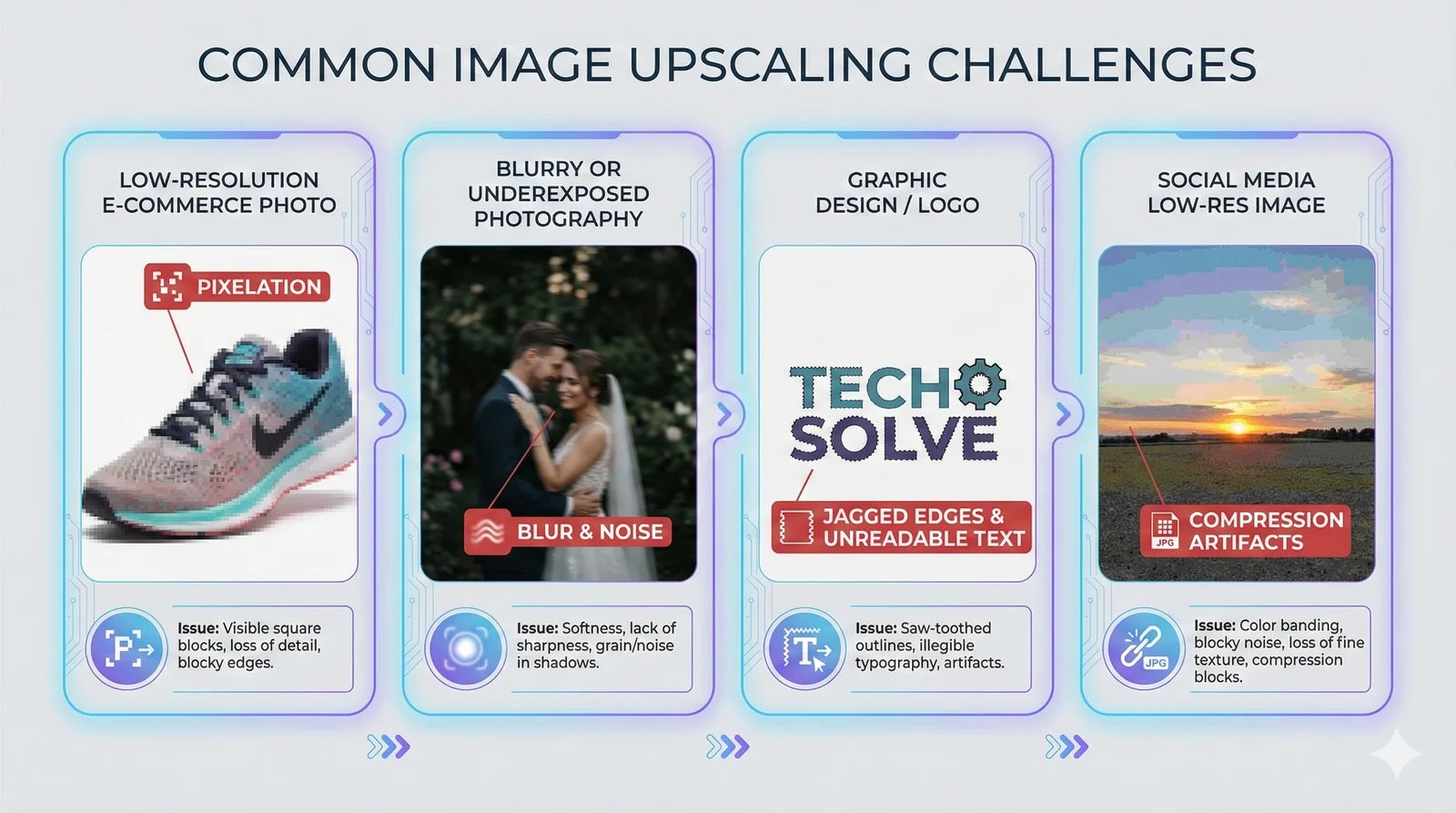
Before diving into tool reviews, it's essential to understand the real-world problems users face when searching for an AI image upscaler. E-commerce sellers on platforms like Amazon, Etsy, and Shopify often struggle with marketplace requirements demanding product images at resolutions far higher than their source files. A 500-pixel product photo shot on a phone won't meet Amazon's 1000-pixel minimum for zoom functionality, and manually reshooting hundreds of SKUs is impractical. These sellers need fast, batch-capable upscaling that preserves product texture and color accuracy without introducing visual artifacts that reduce conversion rates.
Photographers encounter a different but equally pressing challenge: salvaging underexposed, slightly out-of-focus, or simply low-resolution shots from important shoots. Whether it's a wedding photographer who missed critical exposure on a key moment, or a landscape shooter wanting to print a 6-megapixel JPEG at large format, the goal is to recover detail and sharpness without the telltale signs of digital manipulation. For this audience, the best AI image upscaler must handle subtle tonal gradations, skin tones, and natural textures like foliage or water with finesse.
Designers and creative professionals face client demands that often arrive mid-project: a web-resolution logo that suddenly needs to work on a billboard, a social media graphic that must be repurposed for print, or archival brand assets that exist only as low-res PDFs. These users need tools that handle not just photographs but also illustrations, graphics with text, and mixed-media compositions—all while maintaining crisp edges and readable typography.
Social media managers and content creators operate under relentless time pressure, producing multiple posts daily across platforms with varying image size requirements. They need upscaling solutions that are fast, intuitive, and mobile-friendly, with minimal learning curve and instant results. Spending hours tweaking settings or waiting for desktop rendering pipelines is simply not viable.
Finally, photo restorers and archivists work with old family photos, historical documents, and damaged scans plagued by noise, compression artifacts, fading, and physical damage. For this group, the best AI image upscaler must go beyond simple enlargement to include denoising, artifact reduction, and even face reconstruction capabilities, all while preserving the authentic character of vintage imagery.
Evaluation criteria
To compare tools around real workflow priorities, we used the criteria below. This is a source-based review of documented capabilities and workflow fit, not a common-image quality benchmark; shortlist two or three candidates and test them with your own representative images before buying.
Upscaling quality is the foundational metric, but vendor examples are not directly comparable. In your trial, inspect fine textures, edge halos, skin smoothing, text, and invented details at the intended output size. A tool that looks sharp on a demo image can still fail on your catalog, portraits, or artwork.
Use case fit recognizes that no single upscaler excels at everything. Portraits, product textures, architecture, typography, and generative art fail in different ways, so recommendations below emphasize the controls and workflows intended for each content type rather than claiming a universal quality winner.
Workflow efficiency determines whether a tool fits into real production environments. Batch processing capability is essential for e-commerce and agency users who may need to upscale hundreds of images weekly. API and plugin integrations matter for automated workflows—does the tool offer a Photoshop plugin, Lightroom integration, or RESTful API for custom pipelines? We also compare desktop versus cloud processing speed, noting that desktop tools typically process faster for large files but require installation and updates, while cloud tools offer device flexibility at the cost of upload/download time and internet dependency.
Pricing transparency is a frequent source of user frustration. We document free tier limits clearly—how many images per month, what maximum resolution, and whether watermarks or quality reductions apply. We distinguish between subscription models, one-time desktop licenses, and credit-based pricing, noting which structures offer better value at different usage volumes. Crucially, we assess commercial licensing clarity: can you legally use upscaled images in client work, advertising, or resale without additional fees or restrictions? Ambiguous terms of service create legal risk that professional users cannot afford.
Privacy and control have become increasingly important as awareness grows about how web services handle user data. We review data retention policies to understand whether uploaded images are stored temporarily, permanently, or used to train future AI models. Offline processing options appeal to users handling confidential client work, proprietary product images, or medical and legal imagery. We note whether tools explicitly state they do not train on user uploads, and whether processing happens locally on the user's device or in vendor-controlled cloud servers.
Each tool reviewed in the following sections will be assessed transparently against these dimensions, allowing you to prioritize the criteria that matter most for your specific use case.
Top AI Image Upscalers at a Glance
Overview of the 10 tools
The AI image upscaling market in 2026 has stratified into distinct tiers and specializations. Desktop software such as Topaz Gigapixel and AVCLabs Photo Enhancer targets photographers and print teams that need local-rendering options, controls, and batch automation. These tools require more setup than browser tools, and their output quality still needs to be checked against representative source files.
The web-based segment has matured significantly, with platforms like VanceAI, Let's Enhance, and Upscale.media offering powerful AI models accessible through simple browser interfaces. These tools appeal to e-commerce sellers, small businesses, and casual users who prioritize convenience, low barriers to entry, and device flexibility over the ultimate in upscaling quality. Many offer generous free tiers that make experimentation risk-free.
Lightweight, consumer-focused tools like Clipdrop and Icons8 Upscaler target content creators, social media managers, and designers who need quick results without deep technical knowledge. These platforms emphasize speed, modern UX, and mobile compatibility, often at the expense of advanced customization or handling of complex images.
Finally, experimental cutting-edge offerings like Magnific AI push the boundaries of generative AI, reinterpreting and even "hallucinating" details during upscaling in ways that appeal to AI artists and concept designers but may not suit users who need faithful reproduction of source material.
The pricing spectrum is equally diverse. Free-with-limits models allow casual users to test and use tools without payment, though restrictions on resolution, monthly volume, or commercial use often apply. Subscription-based pricing dominates the web tool category, with tiered plans scaling by image volume or feature access. One-time desktop licenses remain popular among professionals who process high volumes and want to avoid recurring fees, though these typically come with higher upfront costs and limited or paid upgrades.
Key differentiators that will guide our detailed reviews include offline capability for privacy-sensitive or internet-limited users, batch volume limits that determine whether a tool scales to agency or enterprise use, integration ecosystems such as Adobe Creative Cloud or API availability for custom workflows, and access to experimental AI models that handle niche content like AI-generated art or archival restoration.
Comparison table structure
The table below is a shortlist by workflow, not a laboratory ranking. Documented capabilities can narrow the field, but output quality and artifacts must be compared on your own images. Commercial rights also depend on the current plan and terms.
| Tool | Best For | Upscaling Quality & Detail | Ease of Use | Pricing Model | Commercial Use & Licensing | Key Integrations & Workflow |
|---|---|---|---|---|---|---|
| Topaz Gigapixel | Professional photographers | Multiple models and detailed controls; test on your files | Moderate learning curve; powerful desktop UI | Subscription-based (legacy perpetual licenses exist) | License and organization-size dependent | Desktop batch processing; plugin available |
| VanceAI Image Upscaler | E-commerce teams | Very good—multiple AI models for different content types | Easy—simple drag-and-drop web interface | Free tier + credit-based subscription | Commercial use allowed under current terms | API access; web-based batch processing |
| Let's Enhance | Creative professionals | Very good—strong texture and portrait handling | Easy—intuitive web UI with guided presets | Tiered subscription plans | Clear—commercial use allowed in paid plans | Web-based batch; integrations with design workflows |
| Upscale.media | Casual users, testing | Good—slightly softer than premium tools | Very easy—no account required for basic use | Generous free tier; premium options available | Unclear—review official terms before commercial use | Web-only; fast processing; minimal setup |
| Icons8 Upscaler | Designers, marketers | Good for illustrations; trails on complex photos | Easy—straightforward interface, Icons8 ecosystem | Bundled with Icons8 subscription | Tied to Icons8 terms—check official page | Integrated with Icons8 design assets |
| HitPaw Image Upscaler | Hobbyists, privacy-focused users | Good—inconsistent on complex textures | Moderate—dated interface, offline setup required | One-time purchase option; subscription available | Check official site—terms vary by license | Desktop app; offline batch processing |
| Adobe Image Upscaler | Creative Cloud subscribers | Very good—leverages Adobe AI research | Easy for Adobe users; integrated into Photoshop | Bundled with Photoshop/Creative Cloud | Clear—covered under Creative Cloud terms | Seamless Photoshop workflow; web tool available |
| Clipdrop Image Upscaler | Content creators, influencers | Good—variable quality on complex images | Very easy—modern UI, mobile app available | Free tier + paid subscription | Review Clipdrop/Jasper terms before commercial use | Web + mobile app; fast social media workflows |
| AVCLabs Photo Enhancer | Photo restoration enthusiasts | Good—bundled denoising and face restoration tools | Moderate—desktop installation, learning curve | One-time + subscription options | Verify commercial terms on official site | Desktop app; all-in-one enhancement suite |
| Magnific AI | AI artists, experimental creatives | Excellent for generative reinterpretation; can over-generate | Moderate—slower processing, creative control needed | Subscription with monthly quotas; higher cost per image | Plan-dependent—higher tiers allow commercial use | Web-only; popular in AI art communities |
This table is a starting point; the detailed reviews that follow provide the context and specifics needed to make an informed choice for your particular needs.
In-Depth Reviews of the Best AI Image Upscalers

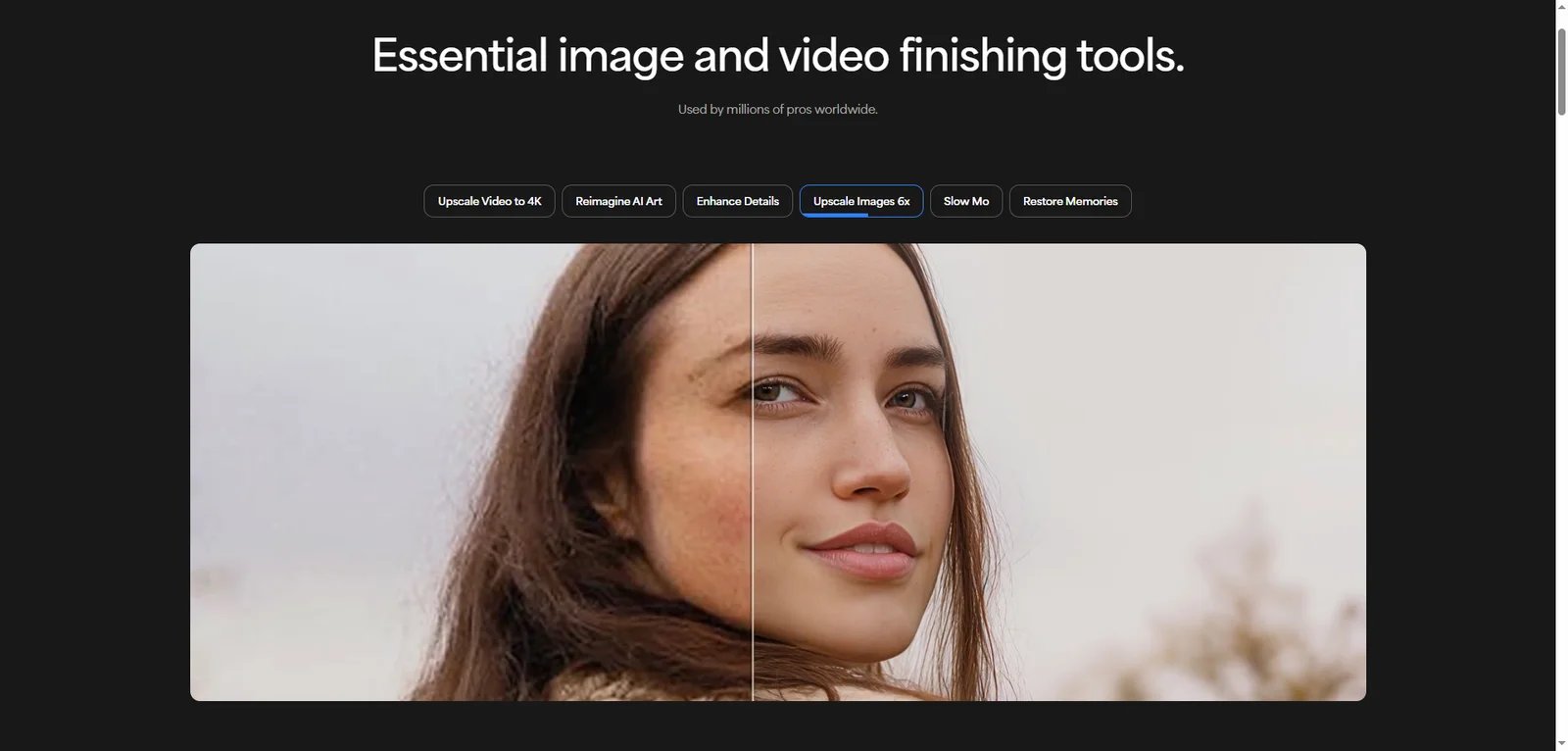
Topaz Gigapixel is a strong desktop shortlist candidate for professional photographers and print production teams that need local rendering, batch workflows, and detailed controls. It is available for Windows and macOS as a standalone app or plugin. Some models and features may use cloud services, so confirm the intended model and account requirements before treating a workflow as fully offline.
Gigapixel offers multiple models and controls for different source types, which makes it more adaptable than a one-click web upscaler. That does not guarantee the best output on every image: compare representative portraits, textures, text, and difficult low-resolution sources, and watch for invented detail or over-processing at aggressive scale factors.
Workflow efficiency is another major advantage. Gigapixel supports robust batch processing, allowing users to queue hundreds of images with consistent settings and let the software process overnight. The interface offers granular control over enhancement strength, noise reduction, and blur removal, with real-time preview comparisons to evaluate changes before committing. For users integrated into Adobe workflows, Topaz offers a Photoshop plugin that enables upscaling directly within Photoshop layers.
Limitations center on cost and accessibility. Gigapixel is now primarily sold as part of Topaz's subscription plans, though some users may still hold legacy perpetual licenses. The recurring subscription cost may be justified for high-volume professionals but can deter casual users with infrequent upscaling needs. The learning curve is steeper than drag-and-drop web tools; new users must familiarize themselves with model selection, parameter tuning, and batch workflow setup. Finally, the desktop-only nature excludes mobile or tablet users and requires sufficient local storage and processing power—large image batches can be memory-intensive.
Typical use cases where Topaz Gigapixel excels include large-format printing projects where even minor quality loss is unacceptable, real estate photography requiring crisp architectural detail at poster sizes, archival restoration of historical images with complex textures, and professional photography portfolios where image quality directly impacts client perception and sales.
Pricing and licensing information is available on the official Topaz Labs website, where the company publishes current subscription plans and clear terms for commercial use. Commercial use is permitted under Topaz's standard license terms. For heavy users processing large volumes regularly, the subscription can still be cost-effective compared to credit-based web tools, though the ongoing cost structure differs from the perpetual licenses previously offered.
Get started with Topaz Gigapixel

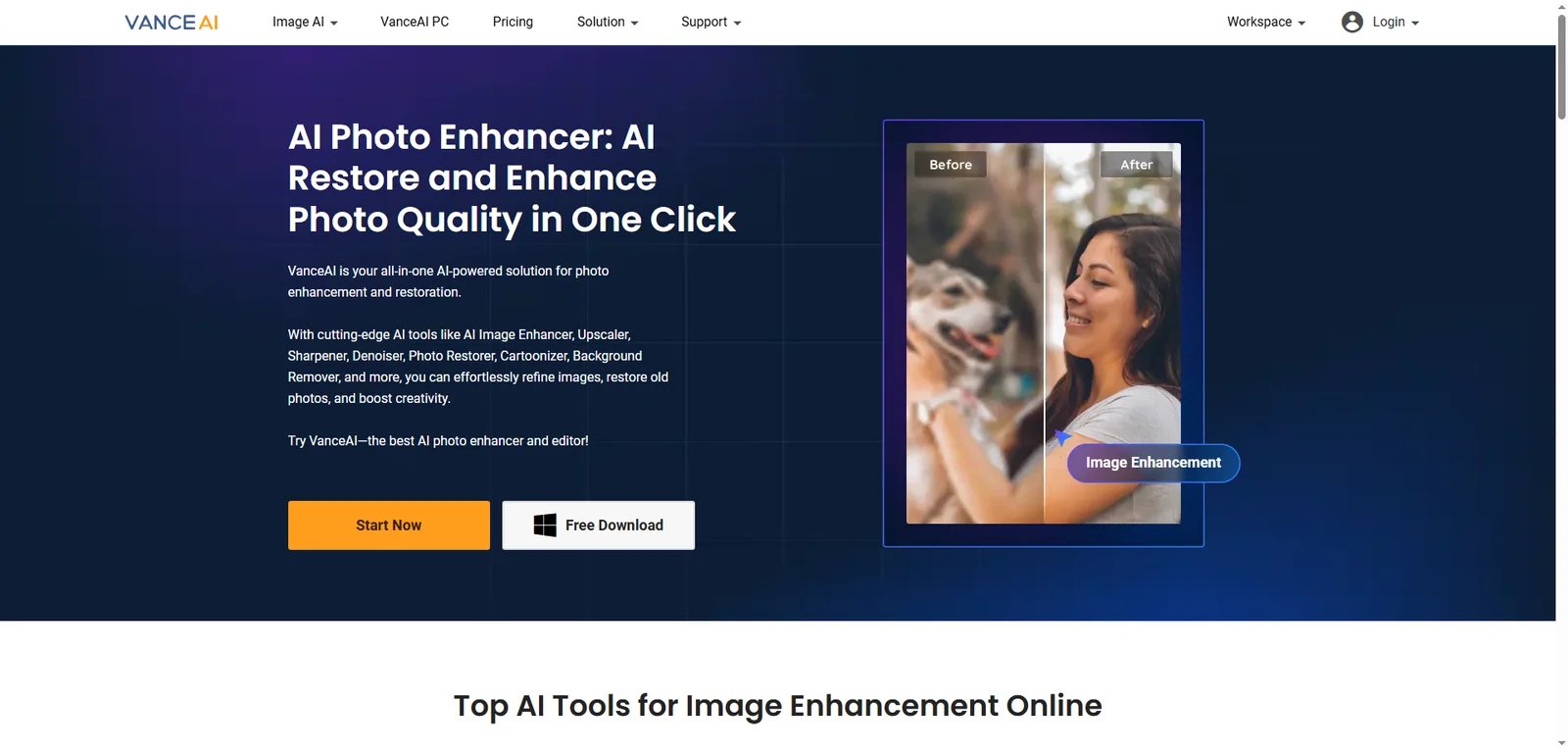
VanceAI Image Upscaler has positioned itself as the go-to web-based platform for e-commerce sellers, small businesses, and anyone who values speed and convenience without requiring desktop software. The platform's fast processing, simple drag-and-drop interface, and generous free tier make it accessible to users who need immediate results without technical expertise or upfront investment.
One of VanceAI's standout features is its multiple AI models tailored for different content types. Users can select models optimized for standard photos, artwork and illustrations, CG and anime, or text-heavy images, ensuring better results than one-size-fits-all algorithms. This flexibility is particularly valuable for e-commerce sellers who upscale diverse product categories—clothing with fabric textures, electronics with precise edges and text, and lifestyle shots with people and backgrounds—all requiring different processing approaches.
The web interface is genuinely user-friendly. Upload an image, select an upscaling factor (2x, 4x, or 8x), choose the appropriate AI model, and receive results in seconds to minutes depending on resolution and server load. For users with higher volumes, VanceAI offers batch processing in paid tiers and API access for developers building automated upscaling into e-commerce or content management systems.
Quality-wise, VanceAI delivers very good results that satisfy most business and casual use cases. It handles product photos with good color accuracy and texture preservation, making upscaled images suitable for Amazon, Shopify, and other marketplace requirements. Portrait handling is solid, though pixel-peeping against desktop leaders like Topaz reveals slightly softer detail and occasional minor artifacts on complex backgrounds.
Limitations include the credit-based pricing model, which can become expensive for heavy users compared to one-time desktop licenses. Each upscale consumes credits based on resolution and model complexity, requiring careful monitoring of usage. According to VanceAI's current Terms of Use, processed images may be used for both non-commercial and commercial purposes. However, as a cloud-based service, uploaded images pass through VanceAI servers, so users handling sensitive or proprietary content should review the privacy policy and any statements about data retention or model training practices.
Typical use cases where VanceAI shines include preparing Shopify or Amazon product images at required resolutions, quickly generating social media assets from lower-resolution originals, and integrating upscaling into light photo editing workflows where users prefer web-based tools over desktop software. The API makes VanceAI particularly attractive for developers building automated content pipelines.
Pricing details, including available free credits and subscription tier features, are published on the VanceAI website. Commercial usage rights are generally included in paid plans, but verifying current terms directly with VanceAI ensures compliance for client work and advertising use.
Get started with VanceAI Image Upscaler

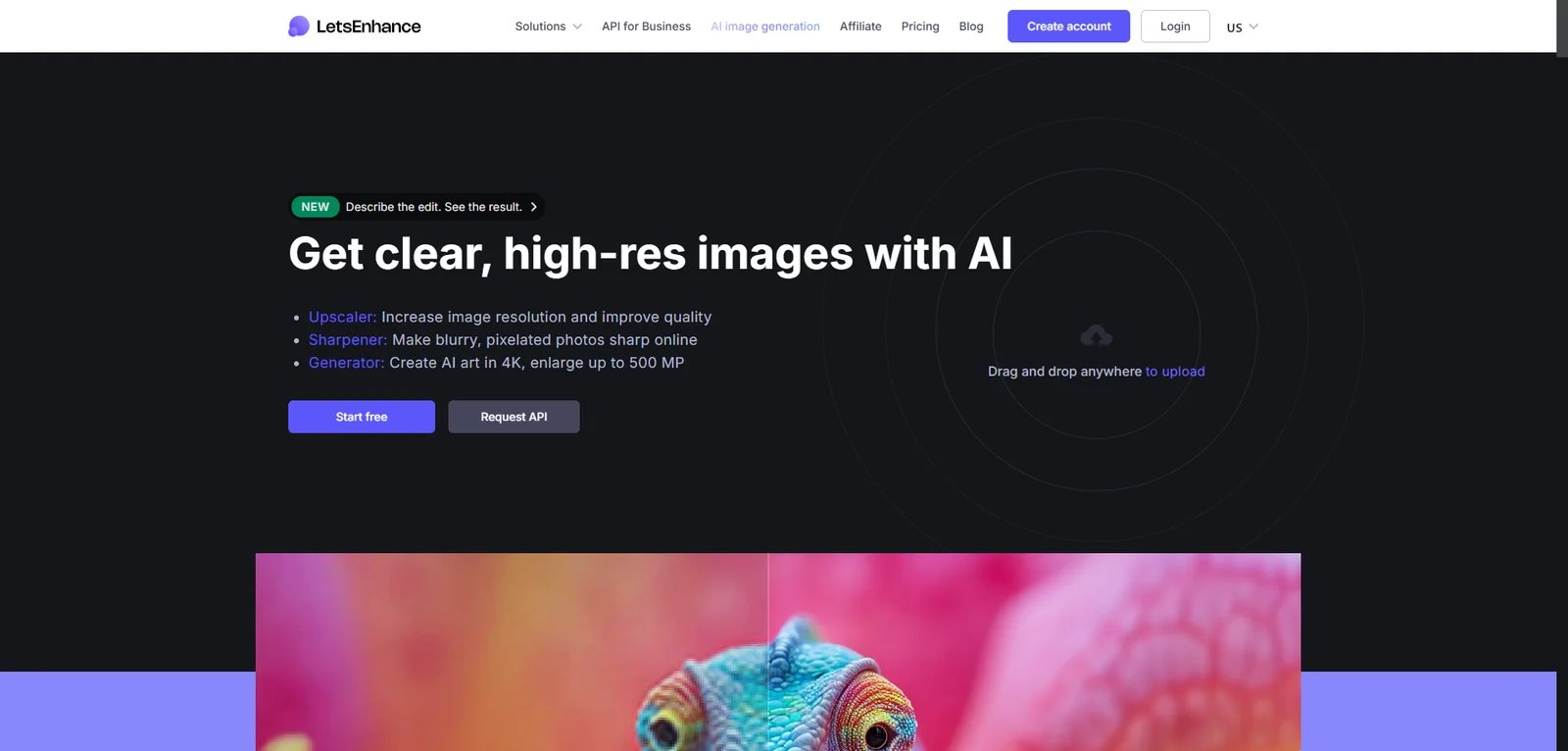
Let's Enhance has carved out a strong position as the web tool of choice for creative professionals—marketing agencies, freelance designers, and real estate photographers—who need a balance between ease of use and solid upscaling quality without committing to desktop software. The platform's intuitive interface, good handling of both textures and portraits, and bundled tone and color enhancement features make it a versatile option for varied creative workflows.
The core upscaling engine in Let's Enhance produces very good quality results, particularly on portraits and images with complex textures like brick walls, wood grain, and fabric. Side-by-side comparisons show that Let's Enhance preserves skin tone subtlety and facial detail better than many web competitors, making it suitable for fashion e-commerce, real estate listings with people, and marketing materials where human subjects must look natural. The tool also offers automatic tone and color enhancement alongside upscaling, correcting exposure and vibrancy issues in a single pass—a workflow efficiency benefit for users who would otherwise need separate editing steps.
Workflow features include batch processing in paid plans, allowing users to upload multiple images and apply consistent settings across an entire set. This is invaluable for real estate photographers processing dozens of property shots or marketing agencies preparing campaign assets at scale. The web interface is genuinely intuitive; guided presets for different content types (photo, art, CG) remove guesswork, while advanced users can access manual controls for enhancement strength and detail level.
Limitations center on pricing and processing speed. Let's Enhance requires a subscription for regular use; the free tier is limited in resolution and monthly volume, making it primarily a trial option. Processing speed can vary depending on server load, with occasional delays during peak usage times. Unlike desktop tools, there is no offline processing option, so internet connectivity and upload/download times become part of the workflow.
Typical use cases where Let's Enhance excels include marketing agencies upscaling client photos for print campaigns, freelance designers preparing assets for client presentations and final deliverables, real estate photographers meeting MLS and marketing material resolution requirements, and print-on-demand shops preparing product mockups and promotional imagery.
Pricing is structured in tiered subscription plans with different monthly image limits and feature access. The official Let's Enhance website provides current pricing details and clarifies commercial licensing terms, which generally permit client work and advertising use under paid plans.
Get started with Let's Enhance

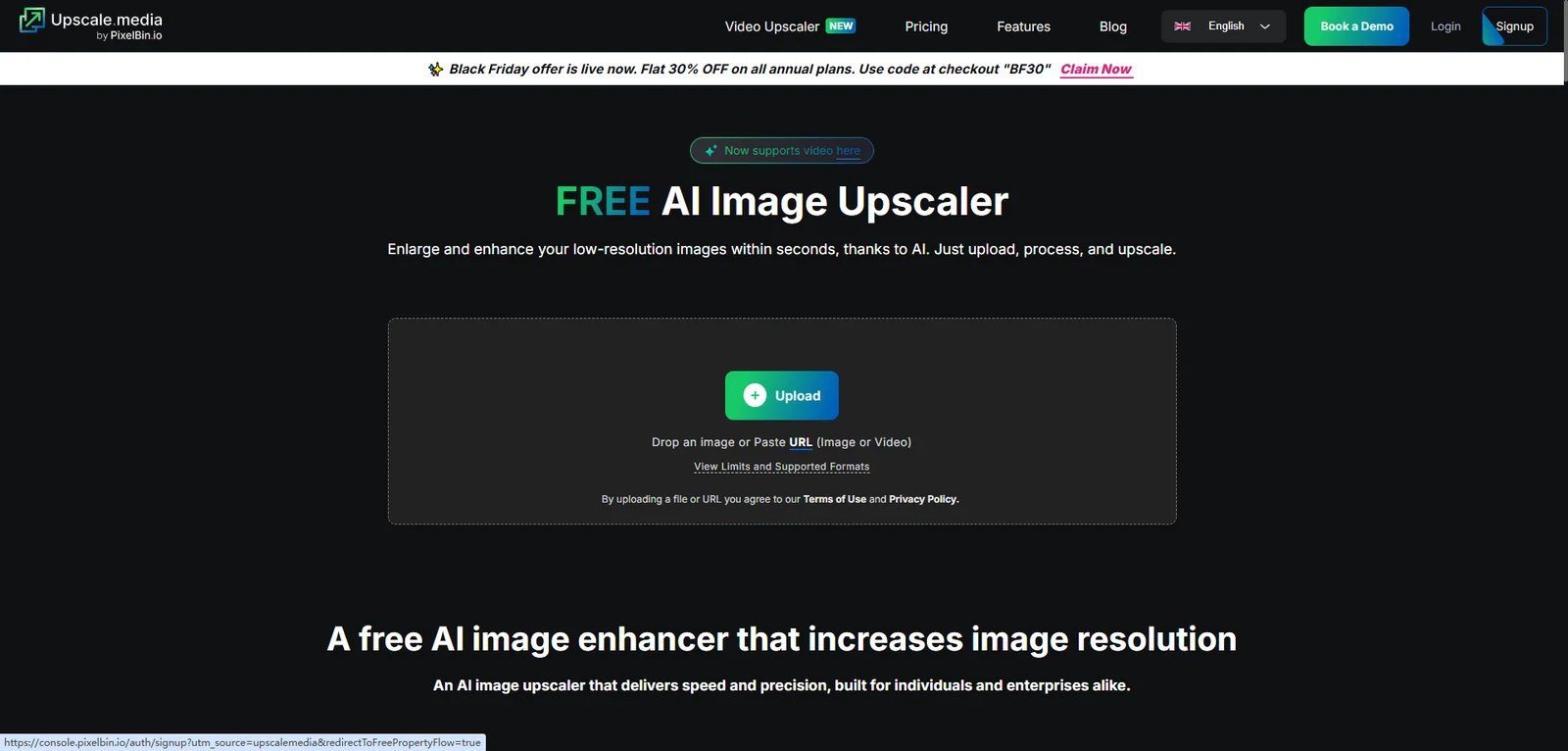
Upscale.media occupies a unique niche as a minimalist, no-frills web upscaler that prioritizes accessibility and speed over advanced features. Its genuinely useful free tier with no-account-required workflow for basic tasks, and clean interface make it the ideal entry point for casual users, bloggers, small business owners, and anyone wanting to test AI upscaling without commitment. For heavier usage or higher resolutions, paid plans unlock additional capabilities.
The tool's primary appeal is simplicity. Visit the website, drag an image onto the upload area, and receive an upscaled result in seconds—no registration, no credit card, no installation. This friction-free experience is perfect for one-off tasks like enlarging a personal photo for printing, quickly improving a blog post image, or testing whether AI upscaling can salvage a low-resolution file before investing in premium tools.
Upscaling quality is good but not exceptional. Results tend to be slightly softer than premium competitors like Topaz or Let's Enhance, with less aggressive detail enhancement. For casual viewing on screens or small prints, this is rarely an issue. For pixel-peeping professionals or large-format printing, the quality gap becomes noticeable. Artifact handling is generally clean; Upscale.media avoids introducing obvious halos or unnatural textures, but it also doesn't recover fine detail as aggressively as more sophisticated tools.
Customization options are minimal by design. There are no AI model selections, batch processing, or manual enhancement controls—just upload, upscale, and download. This is both a strength (no learning curve, no decision paralysis) and a limitation (no ability to fine-tune results for specific content types).
Privacy and licensing are areas of uncertainty. The official terms regarding data handling, retention, and whether images are used for model training are not prominently documented. Users handling sensitive, proprietary, or client content should verify policies directly with Upscale.media support before use. Commercial licensing clarity is similarly lacking in public documentation, so professional users should seek explicit confirmation before using upscaled images in advertising or client deliverables.
Typical use cases where Upscale.media fits best include bloggers quickly improving featured images, small business owners preparing social media graphics without budget for paid tools, individuals printing personal photos for home display, and anyone testing whether upscaling can solve their problem before researching premium alternatives.
Pricing details, including any premium plans with higher resolution limits or additional features, should be confirmed on the official Upscale.media website. Commercial use terms are similarly best verified directly with the provider.
Get started with Upscale.media


Icons8 Upscaler is part of the broader Icons8 creative toolkit ecosystem, designed specifically for designers and marketers who work with illustrations, graphics, and hybrid vector-raster compositions. Its seamless integration with Icons8's vast library of icons, illustrations, and design assets makes it a natural choice for users already invested in that platform, though its photo upscaling capabilities trail specialized photo-focused competitors.
The tool's core strength lies in upscaling flat graphics, illustrations, and vector-raster hybrids. When enlarging logos, icons, infographics, or presentation graphics with clean edges and solid colors, Icons8 Upscaler performs admirably, maintaining sharp edges and minimizing the softening that can occur with photo-optimized algorithms. This makes it valuable for designers preparing presentation decks, social media graphics, and marketing materials where illustrations and typography dominate.
Photo upscaling quality, however, is where Icons8 Upscaler shows its limitations. Complex photographs with subtle tonal gradations, intricate textures, and nuanced lighting don't upscale as convincingly as they do with photo-specialized tools like Topaz or Let's Enhance. Portraits can look slightly over-smoothed, and fine textures like fabric or foliage may lose detail. For users whose primary need is enlarging photographs rather than graphics, more specialized tools are better investments.
The interface is straightforward and accessible, consistent with Icons8's broader design toolkit. Users familiar with Icons8's other features will find the upscaler intuitive. Icons8 Upscaler offers both standalone pricing options (including prepaid credits and monthly plans) as well as inclusion in broader Icons8 subscriptions. For designers who already subscribe to Icons8 for assets and other tools, the upscaler represents added value at no extra cost; for users seeking only upscaling functionality, dedicated Upscaler plans are available without requiring the full suite.
Typical use cases where Icons8 Upscaler excels include graphic designers upscaling client-provided logos or brand assets for print, presentation creators enlarging illustrations and diagrams for projection or export, social media managers preparing graphics optimized for platform-specific dimensions, and marketers working with mixed-media compositions combining vector icons and raster backgrounds.
Pricing is bundled with Icons8 subscriptions; the official Icons8 pricing page details current subscription tiers and what's included. Commercial rights follow Icons8's broader terms, which generally permit business use within the subscription but should be verified for specific use cases like advertising or client resale.
Get started with Icons8 Upscaler

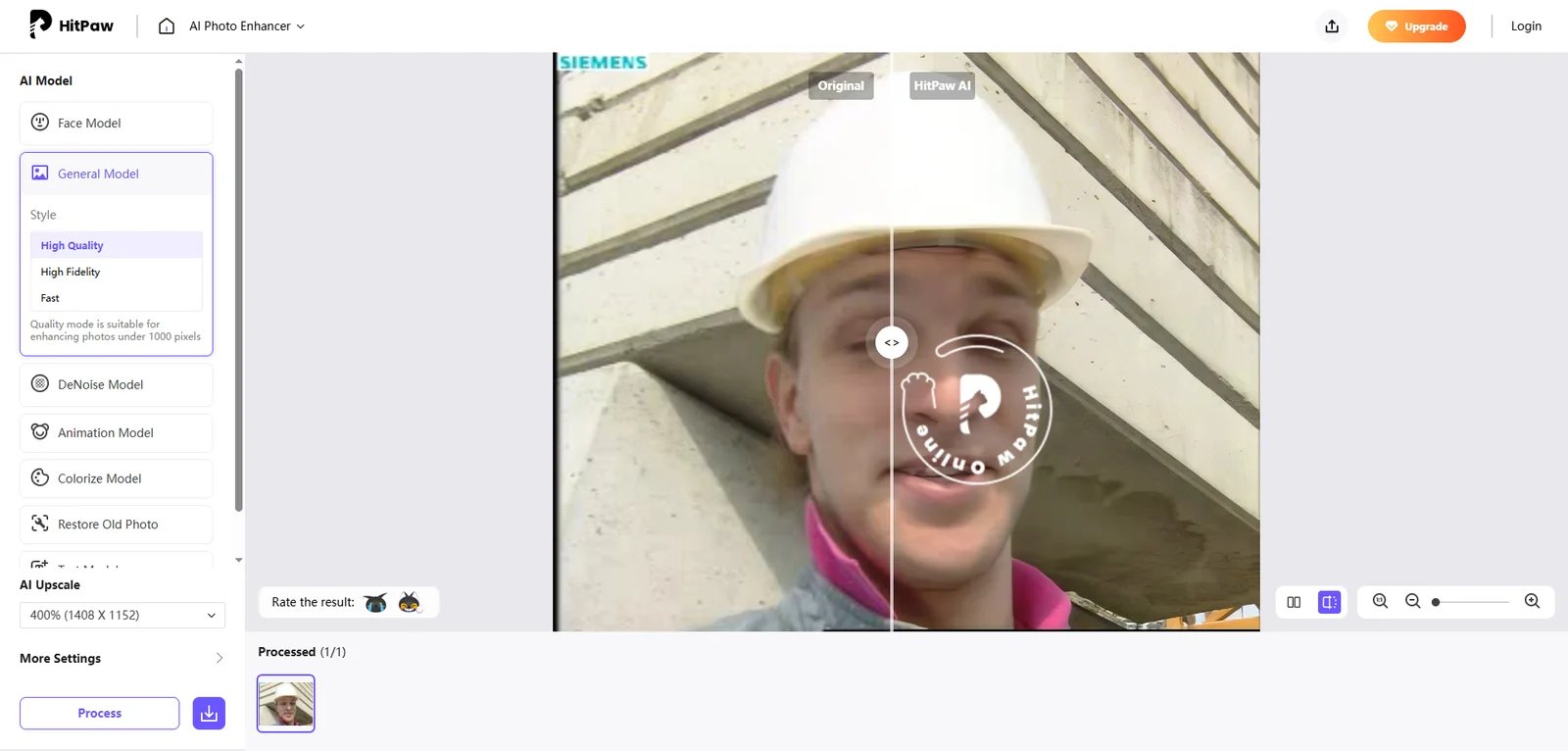
HitPaw Image Upscaler targets Windows and Mac users who want local, offline processing without ongoing subscriptions—a desktop tool for hobbyist photographers, small studios, and users in regions with slow internet or who have privacy concerns about uploading images to cloud services. Its one-time purchase option and offline operation are major selling points, though the interface feels dated compared to modern competitors.
HitPaw's desktop workflow can reduce the need to upload images to a browser-based service. Do not assume that a desktop app guarantees complete privacy: verify whether the selected feature needs an internet connection, what telemetry is collected, and whether the current license and privacy terms fit NDA, medical, legal, or proprietary material.
Feature-wise, HitPaw offers batch processing, multiple AI enhancement modes (general, face enhancement, detail enhancement), and adjustable upscaling factors up to 8x. Face enhancement mode is particularly useful for portrait photographers and photo restorers working with old family photos, as it applies specialized algorithms to smooth skin while preserving facial features. Batch processing allows queuing multiple images with consistent settings, valuable for small studios processing client sessions.
Quality is good but inconsistent. On straightforward portraits and simple landscapes, HitPaw produces clean, usable results comparable to mid-tier web tools. On complex textures—architectural detail, foliage, fabric with patterns—quality becomes more variable, with occasional artifacts or loss of fine detail. It doesn't match Topaz Gigapixel's consistency or sophistication, but for many casual and semi-professional uses, the quality is acceptable.
The interface is functional but feels dated compared to modern desktop software. Layout and controls reflect older design patterns, and the workflow is less intuitive than competitors like Topaz or Adobe. New users face a moderate learning curve to understand mode selection, parameter tuning, and batch setup. Updates are also less frequent than industry leaders, meaning newer AI model improvements and features arrive more slowly.
Typical use cases where HitPaw fits include hobbyist photographers processing personal projects without ongoing costs, small portrait studios with privacy requirements or internet limitations, family photo restorers working with old prints and slides, and users in regions where subscription billing is difficult or where internet connectivity makes cloud tools impractical.
Pricing includes both subscription options and one-time purchase licenses for the desktop version; the official HitPaw website provides current pricing details. Commercial use policies vary by license type and should be verified on the official site before using upscaled images in professional or client work.
Get started with HitPaw Image Upscaler

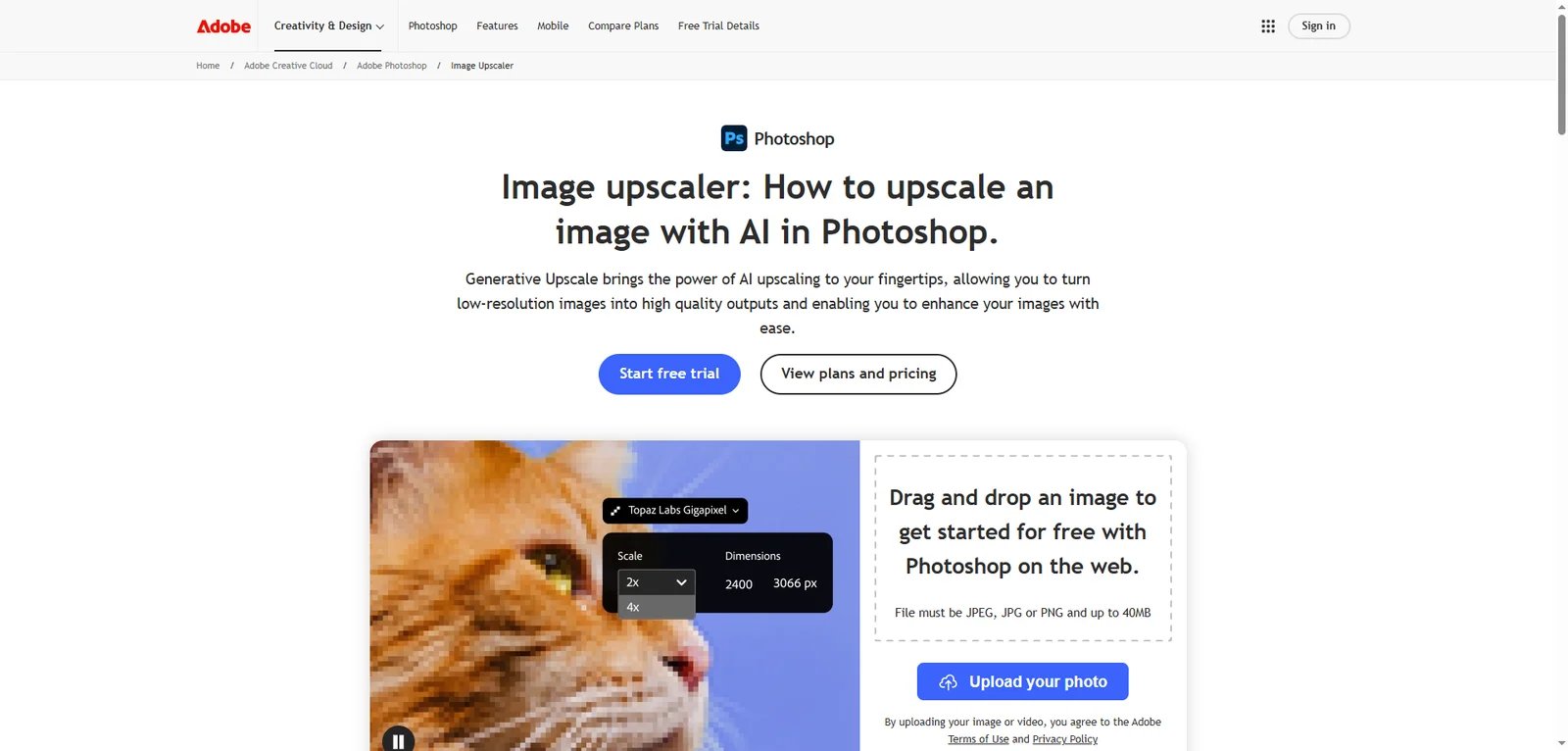
Adobe's entry into AI image upscaling leverages the company's extensive AI research and seamless integration into the Creative Cloud ecosystem. Adobe offers AI-powered upscaling both inside Photoshop (including Camera Raw and Super Resolution features) and via a Photoshop-branded web interface. While there is a limited free trial experience available online, full access is effectively bundled with Photoshop or Creative Cloud subscriptions. This makes it the natural choice for Creative Cloud subscribers and agencies already embedded in Adobe workflows, though it may not justify the subscription cost for users seeking only upscaling functionality.
The primary strength is workflow integration. For Photoshop users, upscaling becomes a native operation within their existing editing environment—no file export, upload, or reimport workflow. This continuity saves time and preserves layer structures and metadata. The upscaling engine leverages Adobe's Sensei AI platform, which also powers generative fill and other modern Photoshop features, ensuring consistent AI behavior across the Creative Cloud suite.
Upscaling quality is very good, though not category-leading. Adobe's AI handles portraits and general photography well, producing natural-looking results without obvious artifacts. However, side-by-side comparisons with Topaz or high-end web tools reveal slightly less aggressive detail recovery on complex textures. Adobe's generative AI approach can occasionally reinterpret or smooth details more than users expecting faithful reproduction might prefer, a characteristic it shares with other generative AI tools.
Limitations include the subscription requirement. While Adobe offers a limited web-based trial, full upscaling capabilities are bundled with Photoshop or Creative Cloud subscriptions rather than available as a separate license. For users who need Photoshop for other tasks, this is incidental; for users seeking only an upscaler, it's an expensive entry point. Customization options are also more limited than standalone upscaler tools—fewer AI model choices, less granular control over enhancement parameters. Generative AI credit limits may apply depending on Creative Cloud plan tier, potentially restricting high-volume use.
Typical use cases where Adobe Image Upscaler excels include Creative Cloud subscribers who want upscaling without leaving their Adobe workflow, agencies already standardized on Adobe tools across teams, projects requiring Photoshop integration for layered compositing or retouching after upscaling, and users who value brand consistency and support from a major software vendor.
Pricing is bundled with Photoshop subscriptions or Creative Cloud All Apps plans. The official Adobe website details current subscription costs and plan comparisons. Commercial use and client work are covered under standard Creative Cloud terms, though users should verify generative AI credit limits and any restrictions on high-volume or automated use.
Get started with Adobe Image Upscaler


Clipdrop Image Upscaler is a consumer-friendly web tool with a mobile app designed for content creators, influencers, and marketers who need fast turnaround and modern UX. Originally developed by InitML and later acquired by Jasper (after a period under Stability AI), Clipdrop continues to serve mobile-first creators. Its free tier, mobile accessibility, and fast processing make it ideal for quick social media content preparation, though output quality is variable on complex images and batch options are limited in free tiers.
The tool's modern interface and mobile app distinguish it from desktop-only or web-only competitors. Content creators working primarily on phones or tablets can upscale images directly within their mobile workflow without switching to desktop computers. The web version is equally streamlined, with drag-and-drop simplicity and real-time processing that delivers results in seconds. This speed and accessibility are perfect for influencers preparing Instagram posts, TikTok thumbnails, or YouTube graphics under tight deadlines.
Upscaling quality is good for straightforward content but variable on complex images. Simple portraits, product shots against clean backgrounds, and graphics upscale cleanly and quickly. Images with intricate textures, complex lighting, or busy backgrounds can show artifacts, softening, or unnatural smoothing. For social media display at screen resolution, these limitations are often minor; for critical client work or print use, they become more problematic.
The free tier is genuinely useful, allowing experimentation and light use without payment. Paid tiers unlock higher resolutions, batch processing, and priority processing speeds. Users should review Clipdrop's own Terms of Use and Privacy Policy to understand how uploaded images are handled, particularly when working with sensitive or proprietary content. As a cloud service, all processing happens on remote servers, so offline capability is not available.
Typical use cases where Clipdrop excels include influencers and content creators upscaling images for Instagram, TikTok, and YouTube, marketers preparing social media campaigns with fast turnaround requirements, casual users experimenting with AI tools without commitment, and mobile-first workflows where desktop software is impractical.
Pricing includes both free and paid subscription tiers; the official Clipdrop website details current pricing and feature comparisons. Commercial usage rights and data handling policies should be reviewed on Clipdrop's official Terms of Use page to ensure compliance before using upscaled images in advertising or client deliverables.
Get started with Clipdrop Image Upscaler
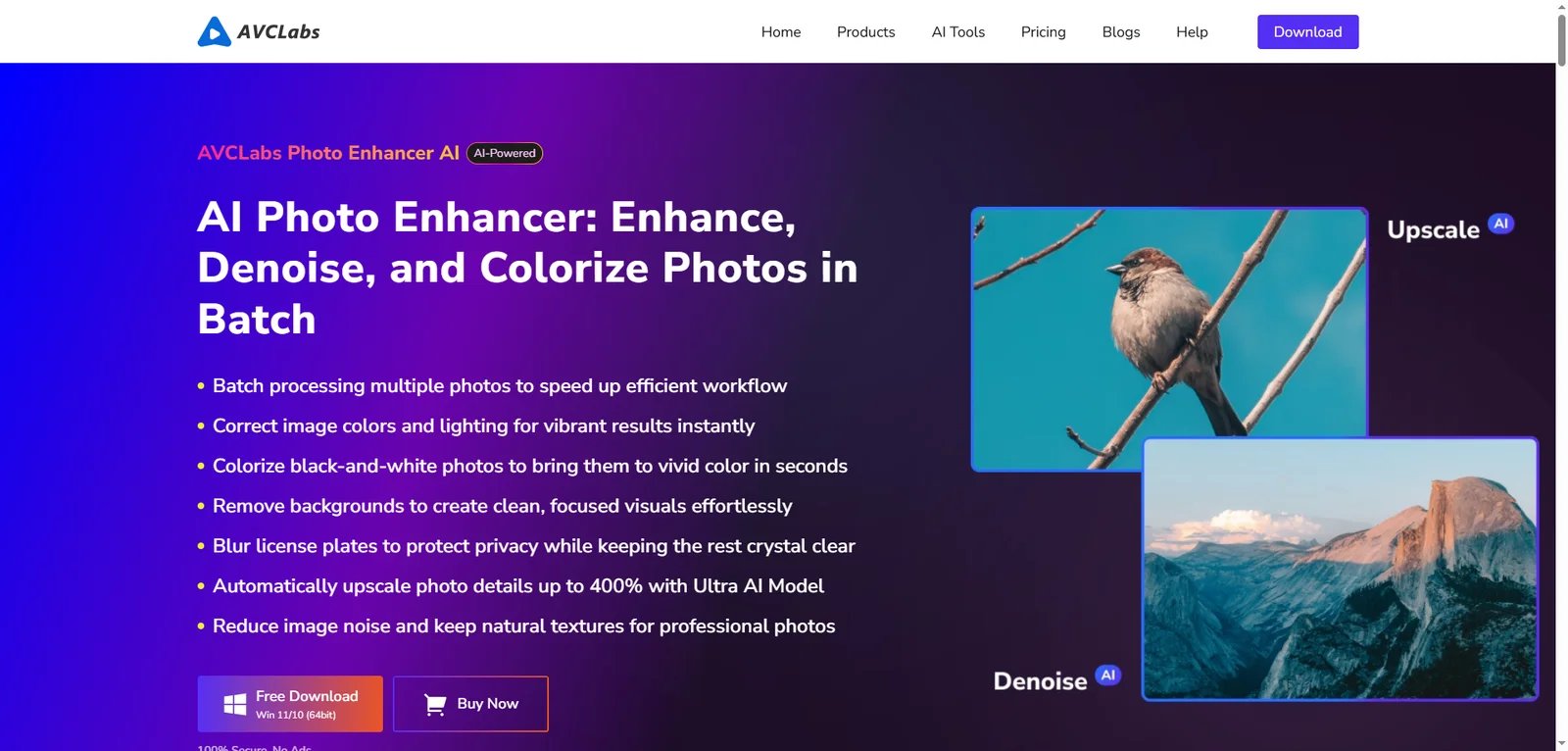
AVCLabs Photo Enhancer is a desktop AI photo editor that positions upscaling as one component of an all-in-one enhancement suite. Targeting enthusiasts, semi-professionals, and photo restorers, it bundles upscaling with denoising, colorization, face restoration, and other enhancement tools under a single interface. The lifetime license option and offline processing appeal to users wanting comprehensive photo enhancement without ongoing subscriptions, though the tool's smaller user community and fewer integrations limit its appeal compared to category leaders.
The all-in-one approach is AVCLabs' primary differentiator. Users dealing with old, damaged, or low-quality photos can apply upscaling, noise reduction, face restoration, and colorization in a single workflow rather than juggling multiple specialized tools. For family photo restoration projects—scanning old prints, salvaging faded slides, restoring damaged portraits—this consolidation saves time and simplifies the technical workflow.
Upscaling quality is good, though it lags behind Topaz Gigapixel on demanding upscales. Straightforward portraits and landscapes upscale cleanly with acceptable detail retention. Complex textures, extreme upscaling factors (6x-8x), and challenging lighting conditions expose limitations compared to leading desktop tools. However, for semi-professional and enthusiast use cases, the quality is often sufficient, especially when balanced against the bundled enhancement features.
The desktop interface requires a moderate learning curve. New users must familiarize themselves with feature navigation, parameter selection for different enhancement types, and batch processing setup. The user community is smaller than major competitors, so finding tutorials, third-party guides, and community support is more challenging. Integrations with external tools like Photoshop or DAM systems are limited compared to industry leaders.
Typical use cases where AVCLabs excels include family photo restoration projects combining upscaling with colorization and noise reduction, portrait photographers wanting bundled retouching and enhancement tools, users seeking a single desktop app for multiple photo improvement tasks without subscription fatigue, and enthusiasts willing to invest time in learning a comprehensive but less polished tool.
Pricing includes both one-time lifetime licenses and subscription options, providing flexibility for different budget preferences and usage patterns. The official AVCLabs website details current pricing and clarifies commercial use terms, which should be verified before using enhanced images in client work or advertising.
Get started with AVCLabs Photo Enhancer

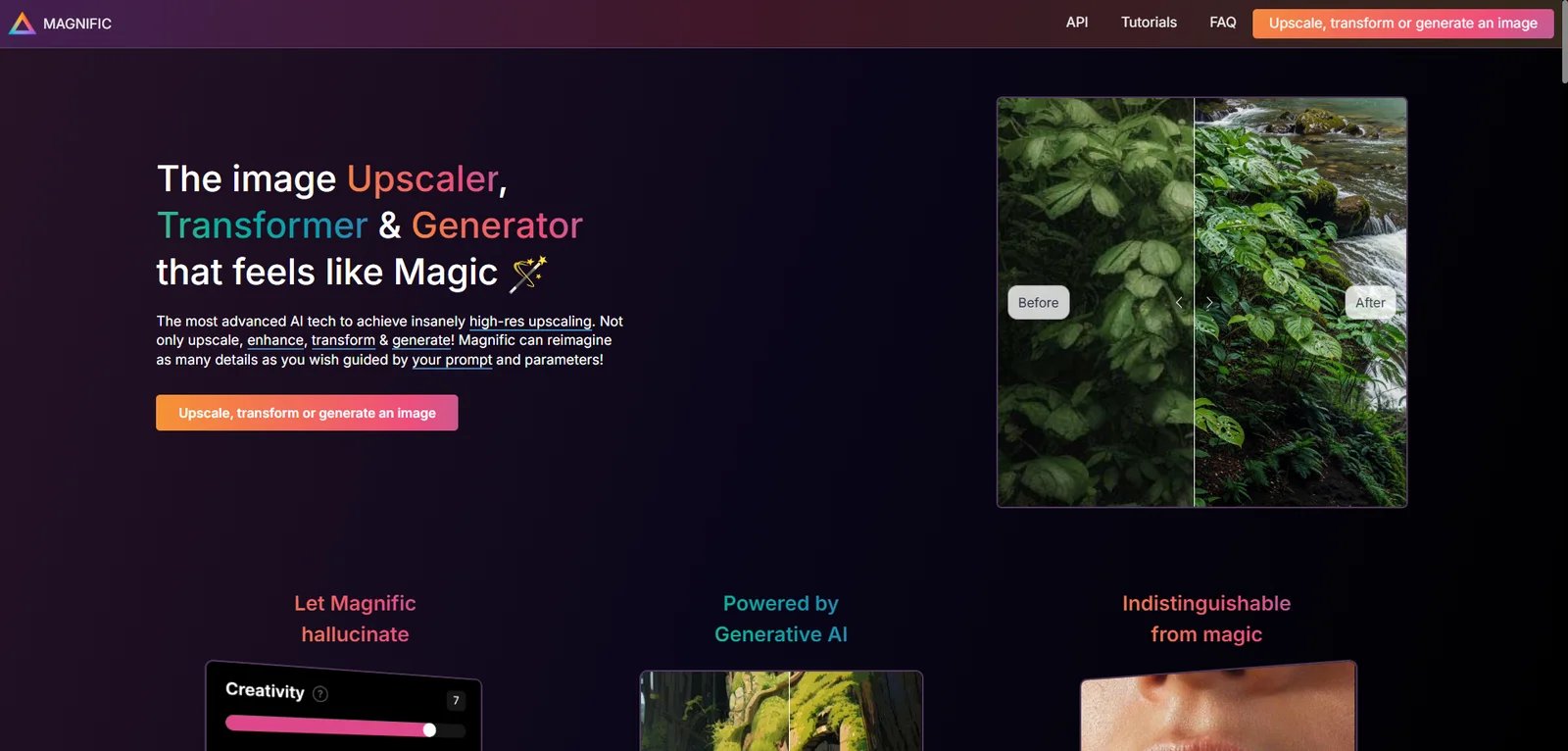
Magnific AI represents the experimental, cutting-edge frontier of AI upscaling, using advanced generative AI to not just enlarge but reinterpret and even "hallucinate" details during the upscaling process. Popular among AI art communities, concept artists, and users refining outputs from tools like Midjourney or Stable Diffusion, Magnific AI offers dramatic upscaling with creative reinterpretation that can produce stunning results on AI-generated imagery—but can also over-generate details not present in the original, making it unsuitable for faithful photographic reproduction.
The core technology differs fundamentally from traditional upscalers. Rather than simply interpolating pixels and enhancing existing detail, Magnific AI uses generative models to imagine and add plausible detail based on the image content and context. When upscaling AI-generated art, this approach can transform a 512x512 Midjourney output into a stunning 4K image with coherent fine detail that wasn't in the source. When upscaling photographs, however, the generative approach can introduce invented textures, alter facial features slightly, or reinterpret architectural details in ways that deviate from reality.
For AI artists and experimental creatives, this generative "hallucination" is a feature, not a bug. The tool enables exploring variations and refinements of AI-generated concepts, producing outputs that feel like higher-resolution re-renderings rather than mechanical enlargements. The ability to dial creative intensity up or down gives users control over how aggressively Magnific AI reinterprets versus faithfully upscales.
Limitations are significant for mainstream use. Processing is slower than most competitors, particularly at high resolutions and aggressive reinterpretation settings. Pricing is subscription-based with monthly quotas of upscales and variations, effectively a bundled credit system. The cost per image is higher than most traditional upscalers, making high-volume use expensive. Magnific AI's terms distinguish between plans intended for personal use and higher-tier plans that allow commercial usage. Anyone planning to use Magnific outputs in client projects or advertising should carefully select a plan that explicitly includes commercial rights and review the current Terms of Use to ensure compliance.
Typical use cases where Magnific AI excels include AI artists refining Midjourney, DALL-E, or Stable Diffusion outputs for portfolio or exhibition, concept artists exploring variations and high-resolution versions of initial sketches or renders, experimental creatives valuing artistic reinterpretation over photographic fidelity, and users producing speculative or illustrative content where creative license is acceptable or desired.
Pricing follows a subscription model with monthly quotas for upscales and variations, with costs varying by plan tier, resolution, and reinterpretation intensity. The official Magnific AI website provides current pricing details and distinguishes between personal and commercial use plans. Users should carefully review terms regarding commercial use, content ownership, and licensing before using outputs in professional or high-stakes contexts.
Get started with Magnific AI
Best AI Image Upscalers by Use Case
Best AI image upscaler for photographers
Photographers demand maximum detail retention, minimal artifacts, and workflows that integrate with existing editing pipelines. The best AI image upscaler for this audience must handle subtle tonal gradations, preserve skin tone nuances in portraits, recover fine detail in textures like foliage and fabric, and support batch processing for entire photoshoots.
Topaz Gigapixel belongs on the shortlist for professional photographers who need a desktop app, local rendering options, batch work, and plugin integration. Its current plans are subscription-based, and commercial rights vary by license and organization size. Compare its output with at least one web alternative on your own print files before choosing it on quality grounds.
For photographers who prefer web-based workflows, Let's Enhance is a practical candidate because it combines upscaling with tone and color controls without requiring local hardware. Compare its portrait and texture output on your files, and verify the current plan's image limits, retention policy, and commercial terms.
Both tools offer features aligned with professional photo workflows, but neither guarantees faithful detail on every source. Compare artifacts at print size and verify the current commercial terms for the exact plan.
Best for e-commerce and marketplaces
E-commerce sellers and marketplace vendors need fast batch processing, consistent quality across diverse product categories, clear commercial licensing that permits advertising use, and ideally API access for automating upscaling within content management workflows. Speed and efficiency matter more than absolute pixel-level perfection; upscaled images must meet marketplace resolution requirements and look professional at typical screen viewing distances.
VanceAI Image Upscaler is a candidate for e-commerce teams that need browser access, multiple content-oriented models, batch processing, and an API. Test representative catalog categories—including texture, text, and reflective products—because model variety does not guarantee consistent output. Compare credit cost at production volume with desktop alternatives.
Let's Enhance serves as a strong alternative, particularly for e-commerce businesses that value its intuitive interface and bundled color/tone enhancement. The subscription tiers accommodate different monthly volumes, and batch processing in paid plans streamlines multi-product workflows. Commercial licensing is clear, satisfying marketplace requirements and advertising use.
Both tools can fit e-commerce workflows, but teams should verify quality across their actual product categories, batch limits, data retention, and commercial rights before moving a catalog.
Best for designers and creative agencies
Designers and agencies require flexibility across content types—photos, illustrations, graphics with text—and seamless integration with existing design tools like Photoshop, Illustrator, and collaborative platforms. Clear commercial licensing covering client work is essential, as is the ability to handle both individual image needs and occasional batch requirements.
Adobe Image Upscaler is the natural choice for Creative Cloud subscribers and agencies already standardized on Adobe tools. The seamless Photoshop integration eliminates workflow friction, preserving layer structures and enabling upscaling as part of broader editing and compositing tasks. For teams where Adobe subscription costs are already absorbed, the upscaler represents added value without incremental spending. The clarity of Adobe's commercial terms and support infrastructure suit agency compliance requirements.
For designers working extensively with illustrations, icons, and vector-raster hybrid compositions, Icons8 Upscaler offers specialized optimization that photo-focused tools lack. Its handling of flat graphics, clean edges, and typography makes it ideal for presentation decks, social media graphics, and marketing materials where illustrations dominate. The subscription bundles upscaling with Icons8's asset library, making it cost-effective for designers who already rely on Icons8 for icons and design resources.
Both options can fit existing design workflows. Client use still depends on the current plan terms and on whether generative features materially reinterpret the source.
Best for social media and casual users
Social media managers, content creators, and casual users prioritize free tier availability, fast processing, mobile-friendly access, and zero learning curve. Quality must be good enough for screen viewing and social media display, but pixel-perfect detail is less critical than speed and convenience.
Clipdrop Image Upscaler leads this category with its modern mobile app, web interface, and generous free tier. Content creators working primarily on phones can upscale images directly within their mobile workflow, ideal for Instagram stories, TikTok thumbnails, and YouTube graphics prepared on the go. Processing is fast, and the interface requires no technical knowledge. The free tier allows regular use without payment, while paid tiers unlock higher resolutions and priority processing.
Upscale.media is a low-commitment candidate for occasional browser-based upscaling. Check the current sign-in, resolution, download, and commercial-use limits before relying on the free path, and judge output on the intended screen or print size.
Both tools meet casual user priorities: no cost or commitment barriers, instant results without learning curves, accessibility across devices including mobile, and quality sufficient for social media and casual screen viewing.
Best for heavy batch processing and workflows
Power users—agencies, studios, e-commerce platforms with large catalogs—need desktop automation, API access for custom integrations, high volume limits without prohibitive per-image costs, offline processing for speed and privacy, and scripting or command-line support for advanced workflows.
Topaz Gigapixel is a desktop batch-processing candidate where local rendering and parameter control matter. Current individual and Pro offerings are subscription-based, while legacy perpetual licenses apply only to older purchases. Confirm whether required models run locally and whether the license covers your organization's commercial use.
For cloud-based batch processing and API integration, VanceAI offers the most mature solution. Its API enables developers to build custom upscaling into content management systems, automated product pipelines, or SaaS applications. Batch processing through the web interface handles multiple images with consistent settings, and credit-based pricing—while potentially expensive at scale—provides predictable cost modeling for business use.
Both tools offer batch or integration options worth piloting for high-volume work. Calculate cost at real volume, sample quality across the catalog, and verify the license before using either for agency or client work.
How to Choose the Right AI Image Upscaler for Your Needs
Step 1: Define your primary use case and content type
Begin by honestly assessing what you're upscaling and why. Are you primarily working with photographs—portraits, landscapes, product shots? Graphic content like logos, illustrations, infographics? AI-generated art from Midjourney or Stable Diffusion? Each content type responds differently to various AI upscaling algorithms, and choosing a tool optimized for your specific content yields dramatically better results.
Next, consider volume and frequency. If you need occasional upscaling—a few personal photos monthly or rare client requests—free tiers or a free local tool such as Upscayl may be enough. If you're upscaling dozens or hundreds of images weekly, compare current subscriptions, credit packs, and desktop plans at your real volume. Agencies and studios with daily batch-processing requirements need robust automation, not just per-image quality.
Critically, test with your actual content, not generic stock photos. Tool reviews and comparisons use representative samples, but your specific imagery—your product photography style, your portrait lighting, your brand's design aesthetic—may respond differently. Download trial versions or use free tiers to upscale 10-15 representative images from your actual workflow before committing.
Step 2: Set your budget and usage frequency
Calculate your realistic monthly or annual volume, then compare pricing models transparently. Subscription tools like Let's Enhance or VanceAI charge monthly fees that scale with usage tiers. Desktop delivery does not necessarily mean a one-time license: Topaz Gigapixel's current individual offering is subscription-based, while Upscayl Desktop is free and open source. Credit-based tools like Magnific AI charge per image or processing operation.
For low-volume casual use (under 20 images monthly), free tiers or low-cost subscriptions typically offer best value. For moderate professional use (50-200 images monthly), mid-tier subscriptions or desktop one-time purchases break even quickly. For high-volume business use (hundreds or thousands of images monthly), desktop licenses or API-based services with bulk pricing prevent costs from spiraling.
Don't forget hidden costs: API overage charges, commercial licensing fees that may be separate from basic subscriptions, mandatory upgrade fees for desktop tools, and opportunity costs of slow processing or workflow friction. Calculate cost-per-image for your expected volume across three finalist tools to make apples-to-apples comparisons.
Step 3: Assess quality and control requirements
Determine your acceptable trade-offs. If you're upscaling for Instagram or blog display, good-enough quality with fast processing may matter more than pixel-perfect detail. If you're preparing images for large-format printing or critical client deliverables, quality cannot be compromised.
Test your specific content types: upload portraits and evaluate skin tone preservation and facial detail; upscale architectural photos and examine brick, concrete, and window detail at 100% zoom; process fabric and check whether texture looks natural or over-processed. Compare outputs side-by-side from multiple tools at actual output size and viewing distance, not just pixel-peeping.
Consider automation versus control trade-offs. Some tools (Upscale.media, Clipdrop) offer one-click simplicity with no customization. Others (Topaz, Adobe) provide granular control over AI models, enhancement strength, and noise reduction at the cost of complexity. Match tool sophistication to your willingness to learn and need for fine-tuning.
Step 4: Verify privacy and commercial licensing terms
If you handle client work, proprietary product imagery, or sensitive content, data handling is a procurement requirement. Desktop tools may offer local processing, but verify the exact feature: activation, telemetry, optional cloud models, and support uploads can still transmit data. Web tools upload images for processing, so review retention, training use, subprocessors, and deletion terms before using confidential material.
Commercial licensing clarity matters for professional use. Can you legally use upscaled images in client deliverables, advertising campaigns, or for resale without additional fees? Most professional tools clearly state commercial terms; some free or experimental tools have ambiguous language or prohibit certain commercial uses. When in doubt, email vendor support for written clarification before high-stakes use.
Read terms of service carefully, particularly for generative AI tools like Magnific AI. Generative upscaling that adds invented details may have different ownership implications than traditional upscaling that only enhances existing content.
Step 5: Evaluate workflow integration needs
Assess how upscaling fits into your existing toolchain. If you edit primarily in Photoshop, tools with Photoshop plugins (Topaz) or Creative Cloud integration (Adobe) eliminate workflow friction. If you work in browser-based tools or need mobile access, web platforms (VanceAI, Let's Enhance, Clipdrop) offer better flexibility.
For agencies and developers building automated pipelines, API availability is critical. VanceAI offers mature API access; many desktop tools support command-line or scripting interfaces. Batch processing capability matters for anyone upscaling multiple images regularly; desktop tools generally offer more robust batch features than web alternatives.
Desktop versus cloud also impacts speed and flexibility. Desktop tools process faster for large files and work offline, critical for travel, field work, or internet-restricted environments. Cloud tools offer device flexibility and no installation requirements but depend on internet speed and introduce upload/download time.
Step 6: Run a structured trial and comparison
Narrow candidates to 2-3 finalists based on the steps above, then conduct a structured trial before final commitment. Select 10-15 test images representing your actual use cases—different content types, varying source quality, typical size and resolution. Upscale each through all finalist tools using comparable settings (same upscaling factor, similar enhancement strength).
Compare outputs side-by-side at 100% zoom to assess detail preservation, artifact presence, and naturalness. View at intended output size and viewing distance—screen versus print, Instagram feed versus billboard. Document pros and cons for each tool across quality, speed, ease of use, and cost.
If possible, involve team members or clients in the evaluation. What looks acceptable to you may not satisfy clients or pass team quality standards. Shared decision-making builds buy-in and ensures the chosen tool meets everyone's requirements.
Frequently Asked Questions
Which is the best AI image upscaler for commercial use in 2026?
How much can I upscale an image before quality becomes unusable?
Are AI upscaled images safe to use in client work and advertising?
Do AI image upscalers store or train on my images?
What is the difference between online and desktop AI image upscalers?
Is it worth paying for a premium AI upscaler instead of using free tools?
Which AI image upscaler is best for beginners?
Can AI upscaling restore very old or low-resolution photos?
How do I avoid the over-processed "AI look" in upscaled images?
Are there free AI image upscalers that work offline?
What should I do if an AI upscaler introduces artifacts or distortions?
Do AI image upscalers work well with AI-generated images?
Get ToolWorthy Weekly
New AI tools, practical guides, and selected AI signals in one weekly brief.
For AI tool founders
Built a tool that belongs in this decision set?
Request an editorial evaluation for possible inclusion in ToolWorthy.
Submit your tool for reviewPaid submission does not guarantee a ranking, recommendation, inclusion, or editorial outcome.